XLSX · 2 sheets
Excel
A reusable invoice and a completed example. Formulas calculate line amounts, tax, payments applied, balance, and payment status.
Learn / Paid invoice template
A paid-in-full invoice confirms the entire invoice amount has been paid. Keep the original invoice details, show the payments and final payment date, and leave a clear record of the zero balance.
Download your free template. No signup needed.
USD · Excel calculates totals · Word is editable · PDF is for printing
By Bokeping Team · Reviewed
INVOICE
INV-2042
Harbor & Pine Studio
Billed to Mercer Street Coffee Co.
Choose your format
Each format includes the original invoice details, four item rows, four payment rows, a paid-on date, and the remaining balance. Use the example to see how the fields fit together.
A reusable invoice and a completed example. Formulas calculate line amounts, tax, payments applied, balance, and payment status.
Edit the invoice and payment history in Word. Calculate amounts manually and confirm the payment status before sending.
Print the blank worksheet and complete it by hand, or view the finished paid invoice. These PDFs do not contain fillable fields.
Template scope: USD, tax-exclusive prices, and customer payments against a simple invoice. Use up to two decimals for quantity, rate, and payment amounts. The sample tax rate is illustrative. For discounts, credits, write-offs, refunds, or overpayments, follow the corresponding Bokeping workflow and keep the original invoice amounts.
A completed example
A paid-in-full invoice keeps the original bill intact and adds the payment information. It gives the customer a copy they can file without mistaking it for another request for payment.
Invoice INV-2042 remains $500.00. Its number, issue date, items, and tax stay the same.
The first $350.00 leaves $150.00 due. The second payment closes that balance. Each keeps its own date and reference.
Check the actual receipt records. Then show Paid in full, the final payment date, and a $0.00 balance. Send the updated copy without creating a second invoice.
Fictional example. The 0% tax rate is illustrative. This preview represents the downloadable template. The Bokeping product PDF uses its own layout.
INVOICE
INV-2042 · USD
Harbor & Pine Studio
412 Example Street Portland, ME 04101
billing@harborpine.example
Bill to
Mercer Street Coffee Co.
85 Sample Avenue Portland, ME 04102
Website maintenance
2 × $250.00 · Illustrative tax: 0%
$500.00
Payments applied
2026-09-22
Bank transfer
PAY-2042-A
2026-10-01
Bank transfer
PAY-2042-B
Save customer details, record each payment against the right invoice, and see what is still due in Bokeping.
These downloads work on their own. Manage invoices in your account using the steps below.
Replace the business and customer details. Copy the original invoice number, issue date, due date, and items. For each payment, enter the actual date, method, reference, and the amount applied to this invoice. A receipt covering several invoices should contribute only this invoice’s allocation.
In Excel, edit the amber cells and keep the formulas. Set Payment records checked to Yes only after verifying the records and invoice details. The paid label appears when the positive invoice total is covered exactly. In Word and PDF, fill in totals, status, and paid-on date manually.
A zero balance needs context. A credit note, write-off, or settlement discount may close a receivable without the customer paying the full invoice amount. Describe that settlement accurately. These templates cover payment-only settlement and do not verify bank transactions or update your Bokeping account.
Use your payment records
For an invoice already in your books, use Sales & Receivables → Payments Received → Record Payment. This records money already received; it does not collect payment from the customer.
Look in Payments Received first, including for receipts created by online payments. Open the customer’s invoice and review Invoice activity to avoid recording the same money twice.
Choose Customer, Payment Date, and Deposit Account. Enter Amount Received, Payment Method, and Reference No. For the final $150 in this example, create a new $150 receipt with its actual date.
In Invoices to pay, put $150 in Payment Amount beside the invoice. Check Amount Applied and Unapplied Amount, then save. Keep the original $350 receipt and the $500 invoice total unchanged.
Review both receipts in Invoice activity and confirm $0 is due. Print the invoice for its total, Payment made, and Balance due. Print the payment document when the customer also needs the payment number, date, and invoice allocations.
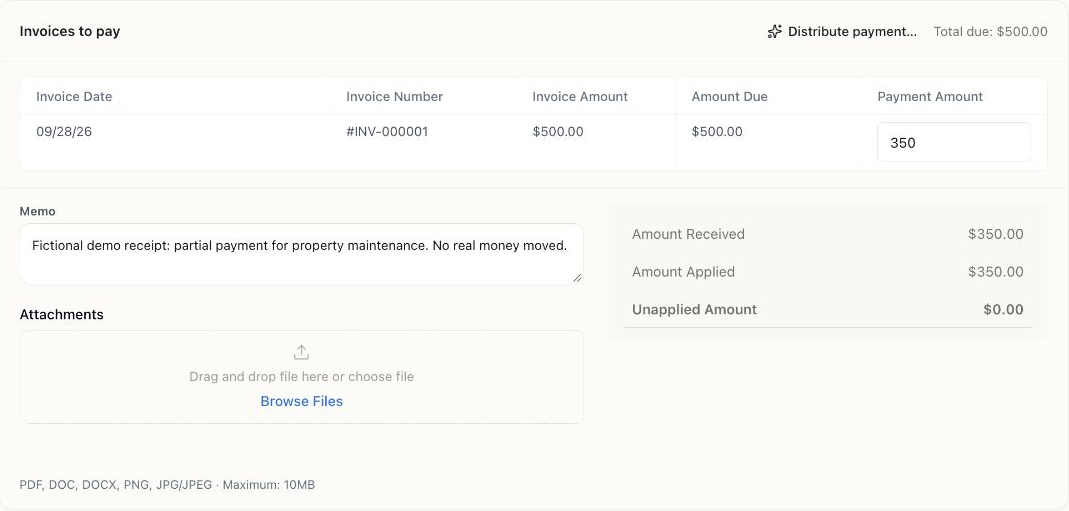
Actual Bokeping demo screen: the first $350 payment toward a $500 invoice. This shows the partial-payment step, before a later $150 receipt. The downloadable example above uses separate fictional business details.
View full-size screenshot (opens in a new tab)The product invoice PDF currently shows payment and balance totals. Its layout does not automatically add the large PAID IN FULL label shown in the standalone template or list every payment’s date and method. When the bank feed arrives, match it to the existing record instead of recording another sale.
FAQs
It is a copy of an invoice that confirms the entire invoice amount has been paid. Keep the original invoice number, dates, items, and total, then show the payments applied, the final payment date, and a zero balance.
Check the actual payment records and apply each payment to the correct invoice. When those payments cover the full invoice total and no amount remains due, add Paid in full and the final payment date. In Excel, confirm Payment records checked after reviewing the details. In Word or the printable PDF, update the status manually.
A paid invoice shows the billed items and their payment status. A payment receipt records money received and how it was applied. They can be shared together when the customer needs both the invoice details and the payment record.
No. Show the amount paid and the remaining balance. In this example, the first $350 payment leaves $150 due on a $500 invoice. Only the later $150 payment completes the payment. A credit note, write-off, or settlement discount can also close a balance, so a zero balance alone does not prove full payment.
The current Bokeping invoice PDF shows the invoice total, Payment made, and Balance due. It does not automatically add the large Paid in full label used in these standalone downloads or list every payment date and method on the invoice. You can also print the payment document for its payment number, date, and invoice allocations.
They are free and require no signup. The files are standalone USD, tax-exclusive documents for simple invoices paid by customer payments. They are not Bokeping import files and do not sync with your account. Use the Help Center invoice CSV format for imports and the product workflows for discounts, credit notes, write-offs, refunds, or excess payments.
Create an invoice, record the money received, and review what is still due in Bokeping.
Need an invoice to send before payment? Browse the general invoice templates. Importing invoices? Use the invoice CSV guide.