 Bokeping
Adjust inventory after a stock count
Record a verified quantity difference and review its value and ledger impact before posting.
In BokepingProducts & Inventory → Inventory Adjustments
Use an inventory adjustment for a verified stock difference, such as damaged or missing goods. First check for unrecorded purchases, sales, returns, and the wrong warehouse; an adjustment should not hide a missing transaction.
Prepare the count
Section titled “Prepare the count”Record the count date, item, location, counted quantity, and reason. Compare counts using the same point in time. See stock does not match if the difference is unexplained.
Record a quantity adjustment
Section titled “Record a quantity adjustment”- Open Products & Inventory → Inventory Adjustments and start a new adjustment.
- Choose Quantity Adjustment. Select the relevant item and any branch or warehouse fields shown.
- Set Date, review Adjustment No., and choose the appropriate adjustment Account with your accountant.
- Review Current Quantity. Choose the direction and enter Quantity to Add or Quantity to Remove as the difference, not the final count.
- For added stock, review Unit Cost where required. This is the cost per unit, not the selling price or the whole adjustment value.
- Check New Quantity on Hand, enter a specific Reason, and review the ledger impact shown before choosing Save to post. Save as draft keeps a draft and does not complete the stock correction.
- Review the resulting item quantity and Inventory Valuation report using the same date and location.
Example: two damaged units
Section titled “Example: two damaged units”Your verified records show 20 units and the usable physical count is 18. Remove 2, not 18. The new quantity should be 18. Review the cost calculated by the system and the adjustment account; do not assume the retail price is the inventory loss.
Review the preview before posting
Section titled “Review the preview before posting”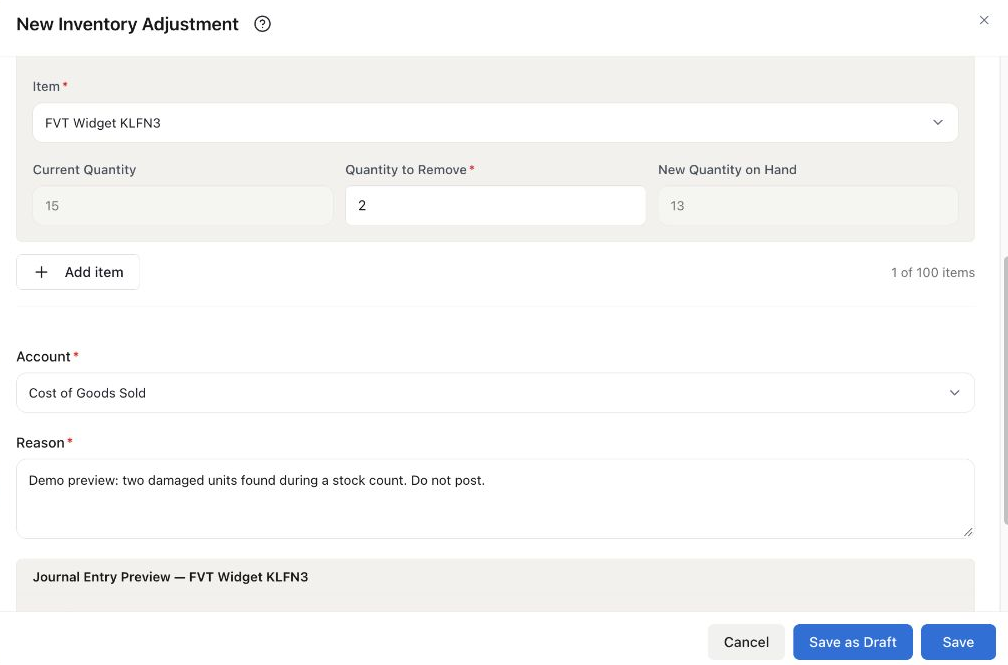
Filled Demo preview: remove 2 from the form’s displayed current quantity of 15, leaving 13. The selected adjustment account is Cost of Goods Sold for illustration; use the account approved for your count difference. The form was canceled and no stock was changed.
Scroll to Journal Entry Preview to check the debit and credit before saving. If its starting quantity or value differs from the item report at the same date and scope, stop and investigate; do not post an adjustment merely to force the numbers to agree. An empty preview is not a zero-value adjustment.
Quantity and value are different corrections
Section titled “Quantity and value are different corrections”Value Adjustment changes inventory value; Quantity and Value Adjustment changes both. Do not use them solely to fix a quantity count. Value-affecting modes require a single item; remove extra item rows before switching from a multi-item quantity adjustment.
If the date is locked, valuation cannot load, or the adjustment is blocked, resolve the displayed cause before proceeding. Do not repeatedly save another adjustment for the same count.