 Bokeping
Create a purchase order and convert it to a bill
Track an order, convert the quantities being billed, and review the resulting draft bill.
In BokepingPurchases & Expenses → Purchase Orders
A purchase order records what you order from a vendor. Opening or sending it does not post an expense, create an accounts payable balance, or pay the vendor.
Prepare the order
Section titled “Prepare the order”- Open Purchases & Expenses → Purchase Orders and create a new order.
- Select the vendor. Review the order number, order date, expected delivery date, and reference.
- Add the items/services, quantities, rates, and tax. Review the vendor-facing notes and total.
- Choose Save as Draft while preparing it, or Save & Open when ready to manage the order.
- Review the saved order before sending it. An open order and an order actually sent to the vendor are separate states.
Read the order before saving
Section titled “Read the order before saving”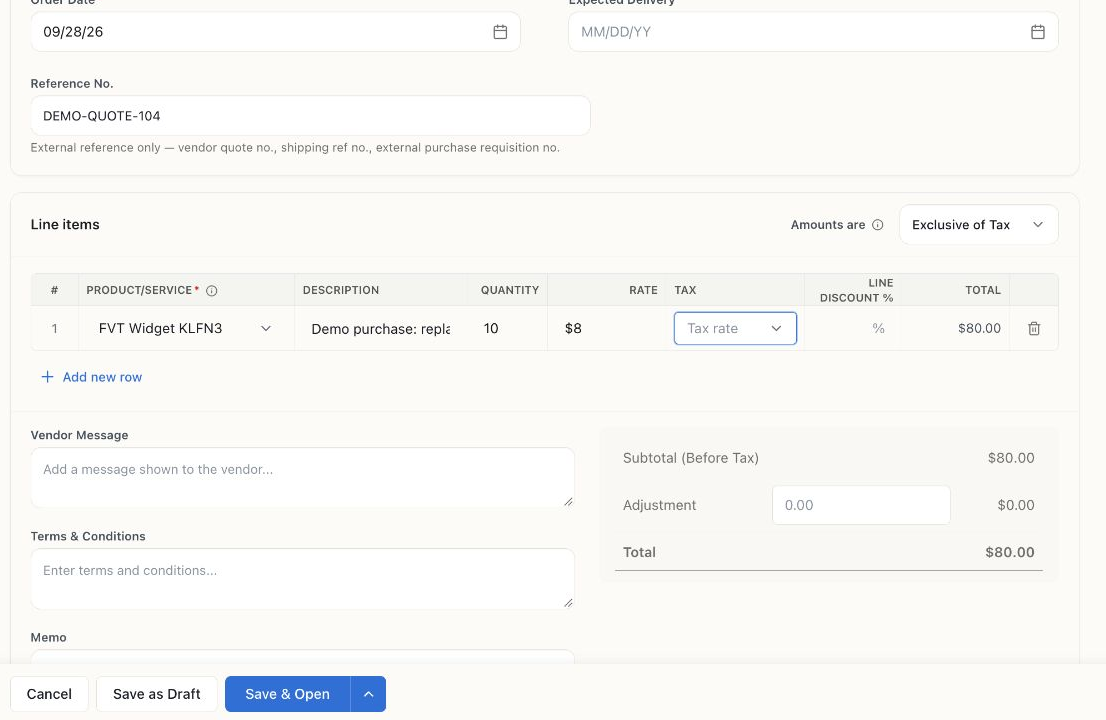
Filled preview for Evergreen Maintenance Supply using an existing Demo inventory item. Ten units at $8 total $80, with no tax selected in this illustration. The save actions are available. The form was canceled without saving or sending.
For an order of ten units at $8 each, select the actual purchasable inventory item, review its description and tax, and confirm the $80 pre-tax total. Do not use a service item merely to bypass a missing inventory setup.
Convert the part being billed
Section titled “Convert the part being billed”- Open the eligible purchase order and choose Convert to Bill.
- Review Lines to convert. Enter Qty to convert for each line being billed, or choose Convert all remaining when appropriate.
- Choose Create draft bill. The quantity cannot exceed the remaining quantity on the order.
- Open the draft bill, compare it with the vendor’s invoice, and review the bill number, dates, prices, tax, and quantities.
- Post/open the bill only after checking it. Then use Payments Made when recording its payment.
| Example | Order quantity | Converted to bills | Still available to convert |
|---|---|---|---|
| Order 10 units; first vendor invoice is for 4 | 10 | 4 | 6 |
| Later convert the remaining 6 | 10 | 10 | 0 |
These are order-to-bill quantities, not a claim that an independent goods-receipt workflow has occurred. Check inventory from the posted transactions that actually affect it.
Change or finish the order
Section titled “Change or finish the order”Close Remaining closes the unconverted remainder when you will not buy it. It does not void bills already created. A closed order can be reopened when permitted. Cancellation is restricted once quantities have been converted; draft deletion and open-order actions have different rules.
If Convert to Bill is unavailable, check that the order is open, has remaining quantity, and you have permission. Do not create both a converted bill and a separate manual bill for the same vendor invoice.