 Bokeping
Invite your accountant or a team member
Give the right person access to the right company.
In BokepingSettings → Team & Access → Team
Invite each person with their own sign-in and the access they need. Membership in one company does not automatically give access to your other companies.
Where to go: Settings → Team & Access → Team. The page heading is Users.
Before you invite
Section titled “Before you invite”Confirm the selected company, the person’s email address, and the work they need to do. Your role must allow access management. Review the capacity displayed in Team seats or External accountants.
Invite a team member
Section titled “Invite a team member”- Open the Teams tab and choose Invite Member.
- Enter the recipient’s email and choose the appropriate available role.
- Review the invitation before sending it.
- Ask the recipient to accept it with the invited email address.
- Return to the list and check Status and Invitation validity.
Team-member invitations are valid for 24 hours. After acceptance, access stays enabled until the member is disabled or removed. Use Settings → Team & Access → Roles to review what a role allows.
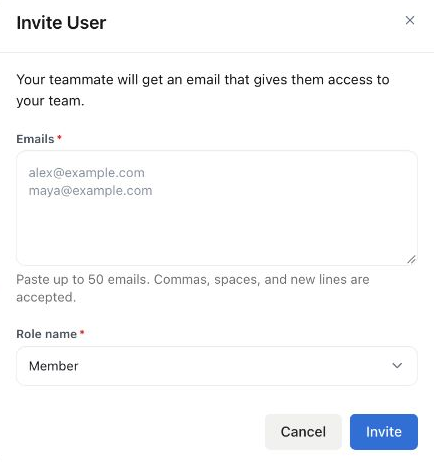
The empty invitation form was viewed only. No email address was entered and no invitation or access change was submitted.
The form accepts up to 50 email addresses, separated by commas, spaces, or new lines. Review the role before submitting a batch; use separate invitations when people need different access.
Invite an external accountant
Section titled “Invite an external accountant”- Open the External accountants tab.
- Choose Invite external accountant.
- Review the email and permission choice, then send the invitation.
- Check the accountant’s status and invitation validity in this tab.
External-accountant invitations are valid for 30 days. Accountants use a separate access pool from ordinary team seats and must enable two-factor authentication before entering the company.
Two-factor requirements
Section titled “Two-factor requirements”The Require two-factor authentication switch applies to the company team. External accountants require it regardless of that switch. Review the effect on members before changing an access requirement.
See secure your account for the personal setup flow.
If an invitation fails
Section titled “If an invitation fails”Check the invited email address, status, and validity period. An authorized administrator can send a replacement for an expired or revoked invitation. Do not create a second company or share passwords to work around an invitation problem.
Invitation History helps you review invitation activity; Operation history provides the access-management history shown in the app.
After an invitation is accepted, use team-access maintenance to review roles, suspend or remove access, and handle pending invitations.