 Bokeping
Set up and review warehouses
Understand warehouse activation, location records, and the checks needed before tracking stock by location.
In BokepingProducts & Inventory → Warehouses
Warehouses separate stock by location. Use them when you need to distinguish a main stockroom from another storage location; a category groups items, while a warehouse identifies where stock is held.
Where to go: Products & Inventory → Warehouses. Availability depends on the company’s enabled features and your access.
Before activating
Section titled “Before activating”The activation dialog warns that Multiple Warehouses cannot be disabled after activation. Review the decision with the person responsible for inventory and accounting before confirming.
The app creates a Primary Warehouse from the company address and treats existing activity as belonging to the primary location. Check Settings → Company first. Preserve the current inventory quantity and valuation reports so you can compare them after setup.
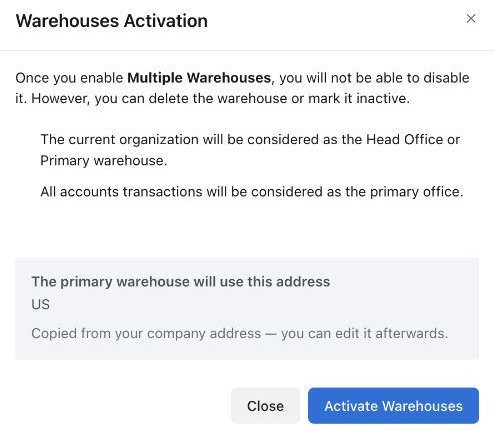
Actual activation preview in the Demo company. Activation was canceled; this screenshot does not demonstrate completed warehouse activation or stock movement.
Activate and add locations
Section titled “Activate and add locations”- Choose Activate Warehouses to review the warning and primary address.
- Confirm only when the primary location and inventory setup are ready.
- After activation, review the primary warehouse before creating another location.
- Use the new-warehouse action and enter Warehouse Name, a useful Code, and the actual location/contact details. Add internal Notes if needed.
- Review Make this the default warehouse before saving. This pre-fills new inventory transactions; it does not prove stock physically moved.
- Confirm the saved location in the warehouse list and check its active/default status.
Example: Main Stockroom and Service Depot
Section titled “Example: Main Stockroom and Service Depot”Use codes such as MAIN and DEPOT to distinguish two actual locations. Ten filters in MAIN and five in DEPOT mean fifteen in total. Moving two filters between them should change the location quantities to eight and seven, with the company total still fifteen.
Creating or renaming a warehouse does not move those filters. Use the supported stock-transfer workflow for a real movement, retaining its source, destination, date, and quantities. Do not use a new sale or purchase to imitate an internal movement.
Check quantities and value
Section titled “Check quantities and value”Compare stock by item, date, and warehouse as well as the company total. If the app shows a costing/setup requirement, resolve it before relying on valuation. An inactive warehouse is hidden from item-entry choices while historical data is preserved; inactivity does not dispose of remaining stock.
If you cannot find a location, check the company, active/inactive filters, feature availability, and permissions. For unexplained quantities, follow stock does not match before posting adjustments.
Once warehouse locations are available, use Transfer Orders to move stock. Review the actual completion action before assuming there is a separate shipment and receipt step.