 Bokeping
Review your company settings
Set your business details, fiscal year, report defaults, and document branding.
In BokepingSettings → Company
Review these settings before recording transactions so your books, reports, and customer documents use the right business information.
Where to go: Settings → Company → Edit.
Company details
Section titled “Company details”Check Organization Name, DBA (Doing Business As), Industry, Business Location, Organization Address, and Phone Number.
Use the legal name for Organization Name. Add a DBA only if the business trades under a different name. A company name change does not create a new set of books.
Tax information
Section titled “Tax information”Review Tax ID, Tax entity type, Tax entity effective date, and Incorporation state where applicable. Choose the tax classification your business actually uses; an LLC may be taxed in different ways.
These fields describe your company. They do not register it with a tax authority or submit an election or tax return.
Financial and regional settings
Section titled “Financial and regional settings”| Setting | What to review |
|---|---|
| Base Currency | The currency of the company’s books. Check it before recording activity; it cannot be changed once transactions have been recorded. |
| Last month of fiscal year | The month your financial year ends. December means a December 31 year-end. |
| Accounting method | The default basis used for financial reports. Choose Cash or Accrual with your accountant. |
| Time Zone | The business’s time zone. |
| Date Format | How dates appear in the app. Check the displayed format when entering or importing dates. |
| Time format | Your preferred 12-hour or 24-hour display. |
See cash vs. accrual accounting before changing the report default. A display-format change does not move a transaction to a different accounting period.
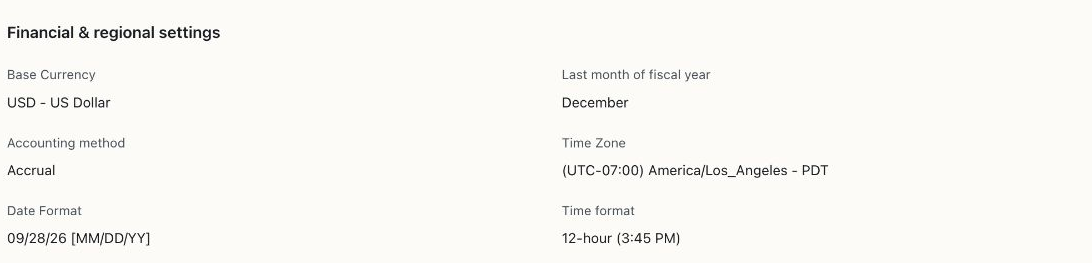
Example settings for the US Demo company. December is its fiscal-year end; the displayed date format affects presentation, not the accounting date of a transaction.
Brand Kit
Section titled “Brand Kit”Review Primary color and Logo. The primary color is used in PDF accents, email templates, and payment pages. Follow the logo dimensions and file-size limit shown beside the upload control.
After a branding change, preview a customer document before sending it.
Save and verify
Section titled “Save and verify”Choose Save changes, then confirm the Company Settings summary shows the intended values. If the action is unavailable, check whether you have made a change and whether your role allows company settings to be edited.
If a field is locked, read its explanation before attempting another workaround. For example, the base currency is locked after transactions have been recorded.
Next: Prepare your opening balances or create your first invoice.