 Bokeping
Set up location-based sales tax rules
Map customer locations to a sales tax rate and check which rule wins.
In BokepingSettings → Tax Settings → Tax Rules
A tax rate supplies a percentage. A tax rule maps a location to an existing rate. Create rules only for the locations and treatment your business has confirmed; a rule does not register your business or determine your legal collection obligations.
Where to go: Settings → Tax Settings → Tax Rules.
Before you start
Section titled “Before you start”Create or review the sales tax rate first. A rule needs an active rate that applies to sales. Have the location details you intend to match, and check the customer’s billing address: the customer tax-rule lookup uses that address.
Create a rule
Section titled “Create a rule”- Review the existing rules to avoid overlapping duplicates, then choose New Tax Rule.
- Enter a clear Name and the two-letter Country Code, such as US.
- Fill State/Province, City, and ZIP Code only to the extent the rule should be restricted. For a US state, use its standard two-letter code.
- Select the intended Tax Rate. If it is missing, check whether the rate is inactive or restricted to purchases.
- Set Priority only when you need to resolve equally specific matches. Choose Active or Inactive under Status.
- Choose Create, or save an existing rule’s changes. Confirm the location, rate, priority, and status in the list.
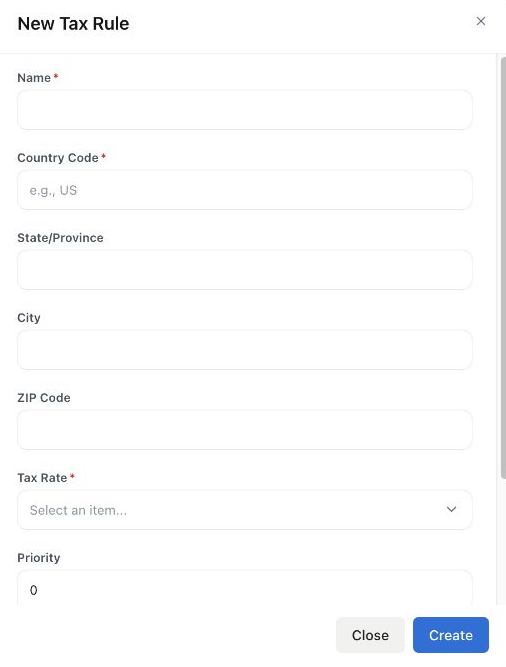
The blank form shows the location-to-rate setup. No tax rule was created for this illustration.
Understand which rule wins
Section titled “Understand which rule wins”The most specific matching rule wins: ZIP → city → state → country. All restrictions supplied on the rule must match. A larger Priority breaks a tie between equally specific matching rules; it does not make a country rule outrank a matching ZIP rule.
| Example configuration | Expected selection |
|---|---|
| A state rule and a more specific matching ZIP rule | The ZIP rule. |
| Two rules for the same location with priorities 1 and 5 | The matching rule with priority 5. |
| An inactive ZIP rule and an active matching state rule | The active state rule. |
Avoid equally specific duplicates with the same priority. Make the intended rule unambiguous rather than relying on an incidental ordering.
Verify on a new document
Section titled “Verify on a new document”Start a new draft invoice for the intended customer. Review the customer’s billing address, exemption status, line tax rates, tax-inclusive/exclusive setting, discounts, and total. Test another relevant location before relying on a broad rule. Do not send the test document merely to check a tax calculation.
A configuration change is not proof that an existing saved invoice has been recalculated. Review existing documents individually before making an authorized correction.
If the result is unexpected
Section titled “If the result is unexpected”Check the address spelling and state code, rule status and specificity, and whether the selected rate remains active and usable for sales. A missing or unusable rate is a configuration problem. An address that fails to match is not evidence that the sale is legally tax-free. Also check exemptions and item defaults using unexpected invoice tax.