 Bokeping
Record a sales tax payment
Record a remittance against Sales Tax Payable and reconcile it with the tax report and bank.
In BokepingReports → Sales Tax Liability Summary
Use Record tax payment to record sales tax already paid to the tax authority. This records the remittance in your books; it does not file a return or send money.
Before you record anything
Section titled “Before you record anything”Have the payment confirmation, actual payment date, amount, and paying account ready. Check whether this remittance is already in your books.
| What happened? | Next step |
|---|---|
| You paid the tax authority, but have not recorded it in Bokeping | Follow the steps below. |
| The payment is already recorded and the bank withdrawal has arrived | Match the withdrawal to the existing entry where an eligible match is offered. |
| You have not paid the authority yet | Pay through the authority’s payment process first. This form only updates your books. |
| You entered the same payment twice or selected the wrong account | Review the record before correcting it. |
Review the liability first
Section titled “Review the liability first”Open Reports → Sales Tax Liability Summary. Select the relevant period and reporting basis, then review the loaded report. Confirm the amount actually remitted against the filed return/payment confirmation. Tax collected during a period and the remaining balance owed can differ because of previous payments and adjustments.
Record the remittance
Section titled “Record the remittance”- In the loaded report, choose Record tax payment. You need permission to create sales tax payments.
- In Pay from, select the bank, cash, or credit card account used for the payment.
- Enter the actual Payment date and Amount. The form suggests the report’s balance owed; change it if you paid a different amount.
- Add Memo, such as the authority, filing period, and confirmation reference.
- Review and choose Record payment. This posts the bookkeeping entry immediately. Check the success message before trying again.
If the amount exceeds the displayed positive balance owed, the dialog asks you to review the overpayment. Confirm the period and prior payments before proceeding; a debit tax balance may represent an advance, not an error to hide.
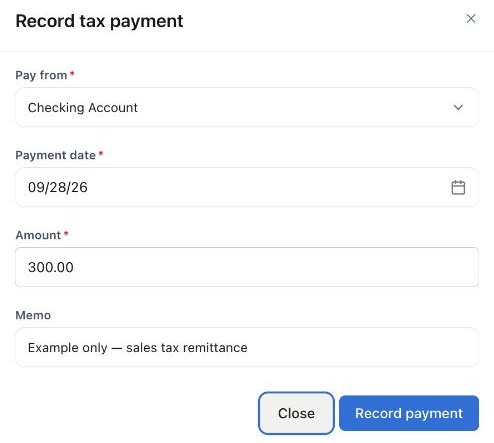
Unsaved example: $300 from Checking Account. The Demo report had no tax due; these entries only illustrate the fields. The form was canceled, and no payment was recorded or sent.
Check the result
Section titled “Check the result”| Example, no other movements | Before | After a $300 bank remittance |
|---|---|---|
| Sales Tax Payable | $500 owed | $200 owed |
| Bank account | Existing balance | $300 lower |
| New tax expense from this remittance | — | $0 |
- Refresh or reopen Sales Tax Liability Summary. When saved payments exist and you have permission to view them, the Tax payments section lists their date, number, paying account, and amount.
- Locate your payment and check the account activity. A bank or cash remittance reduces Sales Tax Payable and the paying account; a credit card remittance increases the card liability instead of reducing a bank balance immediately.
- Check the report’s dates. A payment after the selected period end will not reduce a balance shown at that earlier date.
- When the bank withdrawal arrives, match it to the existing bookkeeping record where an eligible match is offered. Do not categorize it again as a new expense.
Correct a mistaken record
Section titled “Correct a mistaken record”Void corrects the bookkeeping record. It does not cancel a real payment to the authority or request a refund.
- Reopen the report and find the payment under Tax payments. Check its date, number, account, and amount against the payment confirmation.
- If it is an incorrect or duplicate bookkeeping entry, choose Void on that row. You need permission to void sales tax payments.
- Review the confirmation, then choose Void payment only for the entry you intend to reverse.
- Confirm that the row remains visible as Voided and review the reversing entry in the account activity. If the real payment still needs a correct record, enter it once and check the result again.
The reversal retains the original entry’s accounting date, so it can affect reports for that period. For a closed or reconciled period, follow the company’s correction and period-close process with your accountant before proceeding. Do not use a new date merely to get around a restriction.
If something does not look right
Section titled “If something does not look right”| What you see | What to do |
|---|---|
| No Record tax payment or Void action | Check the report has loaded and ask the company administrator to review your permissions. |
| A success message, but an old report balance | Refresh or reopen the report and inspect Tax payments before entering anything again. |
| An error or uncertain save result | Check the existing payment list and account activity first. A slow refresh does not prove the save failed. |
| An amount above the displayed balance owed | Compare the authority’s confirmation, selected period, and prior payments. Record the actual remittance only after understanding the difference. |
| A closed-period or reconciliation restriction | Stop and use the company’s correction process; do not force a balancing expense or duplicate payment. |