 Bokeping
Review or disconnect an AI assistant
See which AI assistants can reach your companies, remove a single permission, add one later, or revoke access.
In BokepingAccount menu → Profile → Connected Agents
Every AI assistant you have approved is listed in one place. From there you can see what each one can do, take back a single permission, or disconnect it completely. Changes apply from the assistant’s next request.
Where to go: open your account menu at the top right, choose Profile, then open the Connected Agents tab. You can also go straight to app.bokeping.com/mcp/connections.
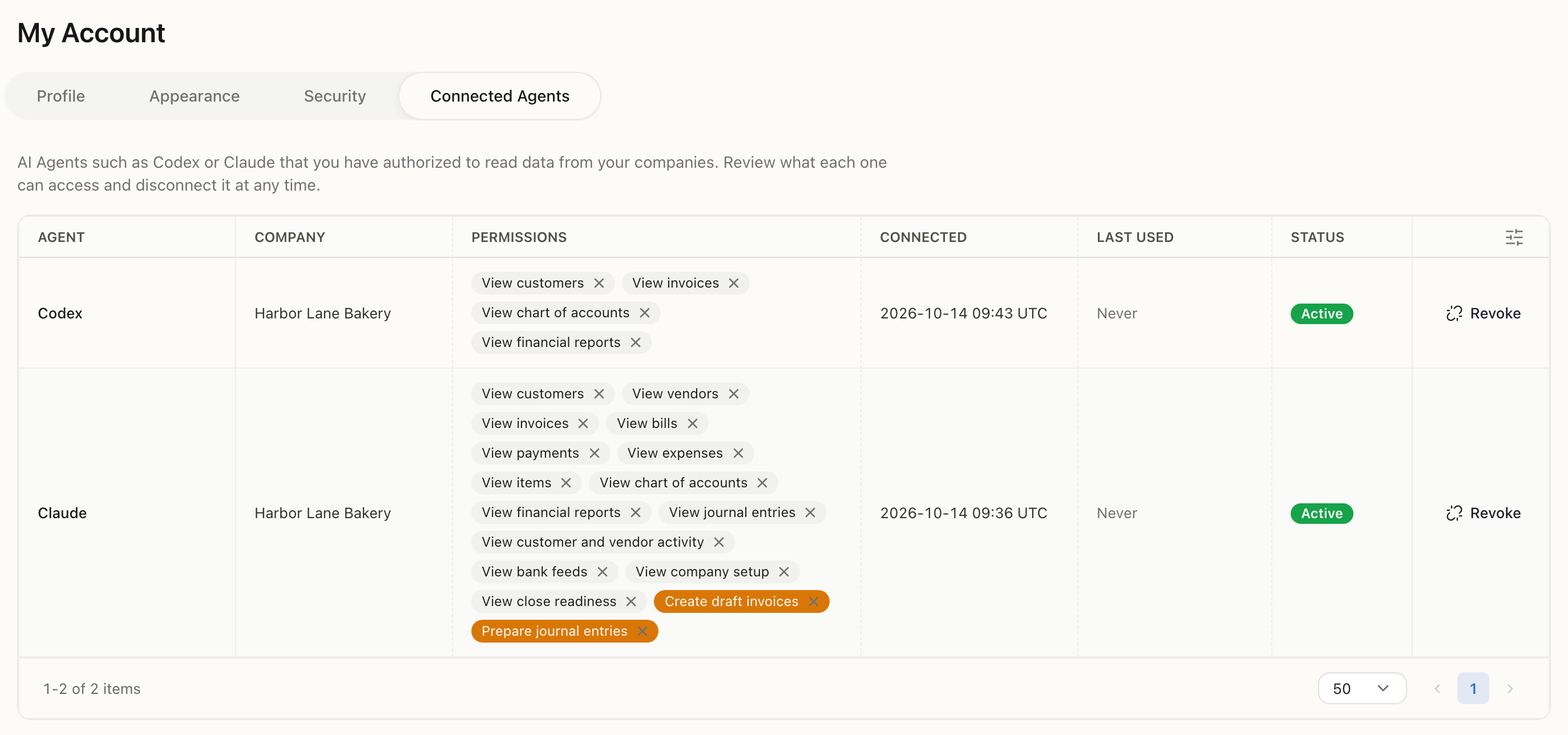
Two demo connections in the fictional company Harbor Lane Bakery. Permissions that can change your books are highlighted in orange. Nothing was revoked.
Read the list
Section titled “Read the list”| Column | What it tells you |
|---|---|
| Agent | The AI app’s name, as it registered itself |
| Company | The one company this connection can reach |
| Permissions | Everything it may do. Permissions that change your books are highlighted |
| Connected | When you approved it, in UTC |
| Last Used | When it last asked Bokeping for anything, or Never |
| Status | Active; Expired once it can no longer renew itself and your AI app must sign in again; or Revoked once you revoke it or replace it by reconnecting |
The list shows only your own connections. Other people in the company manage theirs from their own profile.
Look for anything you do not recognize, a connection to the wrong company, or a permission you do not want. An assistant you stopped using some time ago is worth revoking too.
Remove one permission
Section titled “Remove one permission”- Select the × on the permission.
- Read Remove this permission? It names the assistant, the permission, and the company.
- Choose Remove permission.
The assistant keeps its other permissions, and the change applies to its next request. If it was the last permission left, Bokeping offers to revoke the whole connection instead.
Your AI app may still list tools for a removed permission for up to 15 minutes. Bokeping refuses every call to them.
Revoke a connection
Section titled “Revoke a connection”- Choose Revoke on the connection’s row.
- Read Revoke this Agent connection?
- Choose Revoke connection.
The assistant loses access to that company from its next request, including any download links it handed out. Its status changes to Revoked. To use it again, connect it again from your AI app.
You can revoke an Expired connection the same way. See When a connection expires for why that is worth doing.
Revoking does not undo what the assistant already did. Drafts and records it created stay in Bokeping until you delete them, and answers it gave stay in your AI app’s conversation history. Manage those in your AI app.
Add a permission later
Section titled “Add a permission later”There is no add button on this page. Adding a permission always goes through the approval page, where you can see exactly what you are agreeing to.
- Reconnect from your AI app. In Claude, disconnect and connect the connector again. In Claude Code, run
/mcp, choose bokeping, and authenticate again. In Codex, runcodex mcp logout bokepingand then the login command from Connect an AI assistant. - On the approval page, choose the same company. Your current permissions are already ticked under Already granted.
- Tick the new permission and choose Allow access.
The new connection replaces the old one, so the list shows a single active row for that app and company.
When a connection expires
Section titled “When a connection expires”A connection lasts 30 days from the day you approved it, even if the assistant uses it every day. After that, its status changes to Expired and your AI app asks you to sign in to Bokeping again. A connection you approved but your AI app never finished setting up also shows Expired.
- To keep using it, reconnect from your AI app and approve it the same way. Your earlier permissions start ticked, the new connection shows Active, and the expired row changes to Revoked.
- If you will not use it again, revoke it. An expired connection can no longer sign itself back in, and any access it still had ends within 15 minutes. Revoking it also means that if you connect that app again someday, permissions that change your books start unticked instead of carrying over.
If your own access to the company is removed, or the company is archived, Bokeping revokes the connection. If you are added back later, connect again. If your role changes, the assistant’s reach changes with it on its next request. It can never do more than you can.
For owners and admins
Section titled “For owners and admins”You cannot revoke another person’s connection from here. To stop every assistant from receiving the company’s records at once, turn off Share ledger detail with connected AI agents on the Team page. See Permissions and privacy. To end someone’s access entirely, change or remove their access to the company under Settings → Team & Access → Team.