 Bokeping
Prepare your records for import
Move supported records and bank activity without duplicating your books.
Import records by type rather than treating one file as a complete company backup. Customers, vendors, items, invoices, and bills have different fields and should be prepared separately.
Choose the correct import
Section titled “Choose the correct import”| Records | Where to begin |
|---|---|
| Customers or vendors | Contacts → Customers or Vendors → Import |
| Products or services | Products & Inventory → Items → Import |
| Customer invoices | Sales & Receivables → Invoices → Import |
| Vendor bills | Purchases & Expenses → Bills → Import |
| Bank or credit card activity | Banking → Bank transactions → select an account → Import |
A .qbo file contains bank or card activity, not a complete QuickBooks Online company. It does not move every customer, invoice, attachment, or setting. Use the bank-file import guide for statement formats.
Before you import
Section titled “Before you import”Keep your original export and agree on a cutover date with your accountant. Decide whether you need full historical transactions or just the records and balances required to start from that date.
Import supporting records, such as customers, vendors, and items, before documents that refer to them. Use the target screen’s template and supported fields, rather than assuming your previous software uses the same format.
Prepare and review a file
Section titled “Prepare and review a file”- Open the matching list and choose Import.
- Review the accepted formats and size limit. Use Download template if you need a starting point, replacing its sample rows with your own data.
- Select the file. On Mapping, match columns with the requested fields; column order alone is not enough.
- Check dates, amounts, account names, contact names, and document references. Resolve the errors shown in the review before submitting.
- Read Results, then open the relevant list and compare the imported records and totals with your source file.
Start with a small, identifiable batch. If a job reports errors or partial results, inspect what was created before retrying the file.
Example: import customers first
Section titled “Example: import customers first”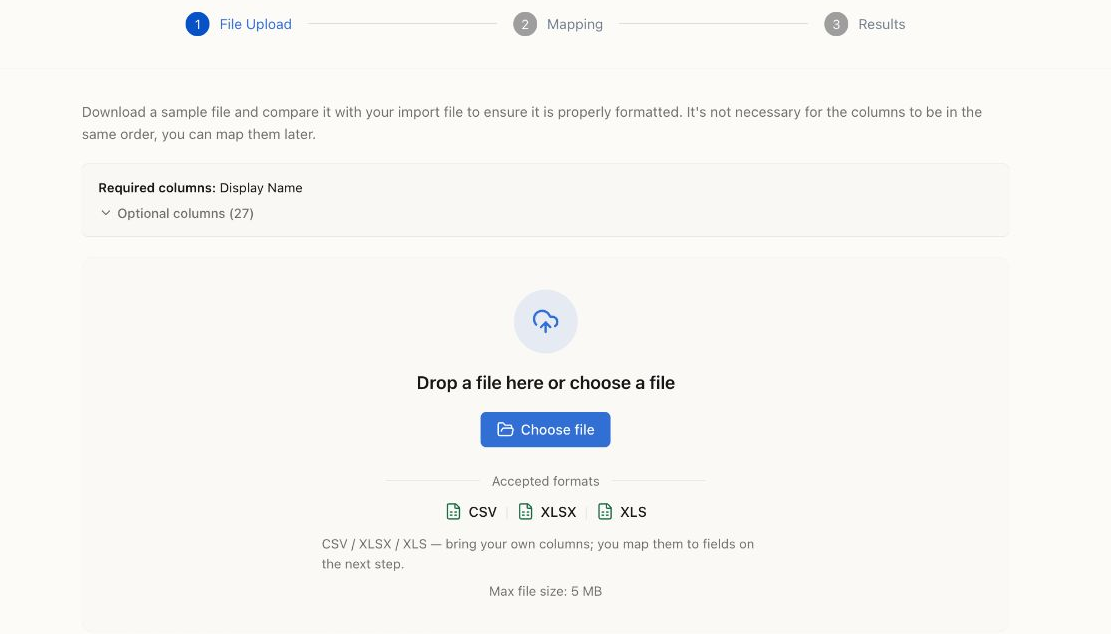
Actual customer-import entry screen. No contact file was uploaded for this image. This workflow accepts spreadsheets; the bank-specific OFX/QFX/QBO formats belong to Bank transactions.
The customer template requires Display Name. Customer type accepts Business or Individual; if omitted or blank, the import uses Business. Review this column when your customers include individuals rather than companies.
For example, import Willow Creek Property Management as a Business before preparing an invoice file that refers to it. Check the saved contact before continuing with invoices. A successful contact import does not import that customer’s unpaid invoices or payment history.
Avoid double counting
Section titled “Avoid double counting”Do not import a customer’s unpaid invoices and also enter their combined amount as the customer’s opening balance. Apply the same rule to vendor bills and inventory.
For bank activity, check overlapping date ranges if you also connect a feed. Match imported activity to existing payments rather than posting it as new income or expense.
Finish by comparing the financial reports with your previous records and reconciling bank accounts.
If only part of a file imports, follow recover a failed or partial import before retrying.
Use the detailed walkthrough for customers and vendors, items and opening stock, multi-line invoices, or multi-line bills. Each includes a small fictional CSV example and the checks to make after import.