 Bokeping
Create your first company
Create a separate set of books and review your company details.
A company is a separate set of books, with its own transactions, team access, and subscription. Your Bokeping account is the sign-in you use to open those books.
If you were invited to an existing company, accept the invitation instead of creating a second set of books.
Open company setup
Section titled “Open company setup”Sign in to Bokeping. If you have no company yet, follow the company setup screen. If you are already in a company, open the company switcher at the top left of the workspace and choose New company.
The form is titled Set up your company.
Enter your business details
Section titled “Enter your business details”- Enter your Legal Organization Name. Use the business’s legal name; you can add a different trading name later in Company Settings.
- Review Business Location and Base Currency. For US books in dollars, use United States and USD – US Dollar. Check the currency before recording transactions; it can be locked afterward.
- Set Time Zone and Language for your business.
- Choose the Last month of fiscal year. Select December if your financial year ends December 31.
- Review How is your business taxed? This optional selection helps set up the appropriate ownership accounts. Use your actual tax classification; an LLC’s legal form alone does not tell you how it files taxes.
- Review Do you collect sales tax? based on your business’s requirements. This does not register your business or file a return.
- Choose Create company once and wait for the workspace to open.
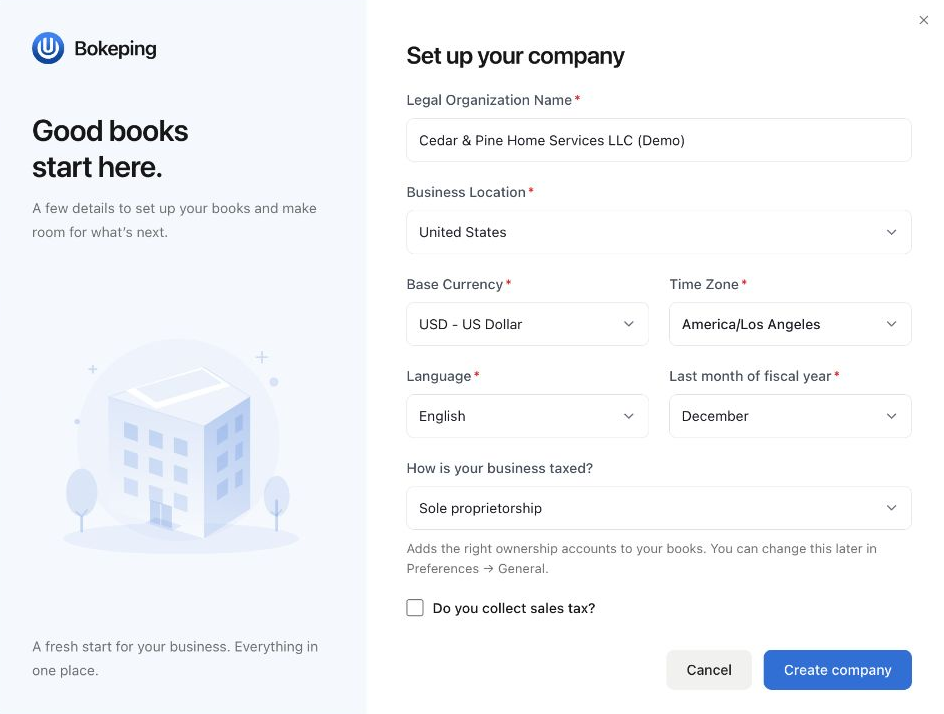
Example only: Cedar & Pine is a fictional single-owner business. Choose your own tax classification and sales-tax settings; the selections shown are not defaults for every US LLC.
Check the result
Section titled “Check the result”Confirm that the company switcher shows the business you just created. Then open Settings → Company and review Company Settings before entering transactions.
You can add your address, phone number, tax details, logo, and report defaults there. See review your company settings.
If setup does not finish
Section titled “If setup does not finish”Check the message beside the relevant field or at the top of the screen. If the request times out, check the company switcher before submitting again so you do not create duplicate books.
If you belong to several companies, always confirm the selected company before importing or saving records. Switching companies changes the books you are working in; it does not combine their records.
Your trial and next steps
Section titled “Your trial and next steps”Creating your first company starts your account’s one-time Pro trial. Other companies created during that trial share its end date; they do not get a fresh trial. See how your Pro trial works.
Next: Your first day in Bokeping. If you already have business records, prepare your opening balances before entering historical transactions.