 Bokeping
Customize document and email templates
Review branding previews, email variables, and the difference between a template and an actual send.
In BokepingSettings → Document Defaults
A document template controls customer-facing presentation. An email template supplies a subject and message. Neither is a payment-provider connection, an accounting entry, or proof of delivery.
Review a document template
Section titled “Review a document template”- Open Settings → Document Defaults → Document Templates.
- Choose Manage for the document type. Invoices, Estimates, Sales Receipts, Credit Memos, Payments Received, and Purchase Orders have their own entries.
- Open an existing template or use the creation action. For invoices, the empty-state action is Create Invoice Branding.
- Enter a Template Name and review Primary Color, Secondary Color, and the company-logo controls available for that type.
- Inspect the preview. Invoice branding offers PDF Document, Payment Page, and Email Receipt previews. Sample amounts and customer details are illustrations, not company transactions.
- Save when ready. Reopen the relevant document and inspect the template actually selected there before exporting or sending it.
Do not assume that creating a template changes every document or that all document types expose the same controls. A disabled Content tab does not offer an editable layout in that view. A payment method shown in branding still needs a working provider configuration.
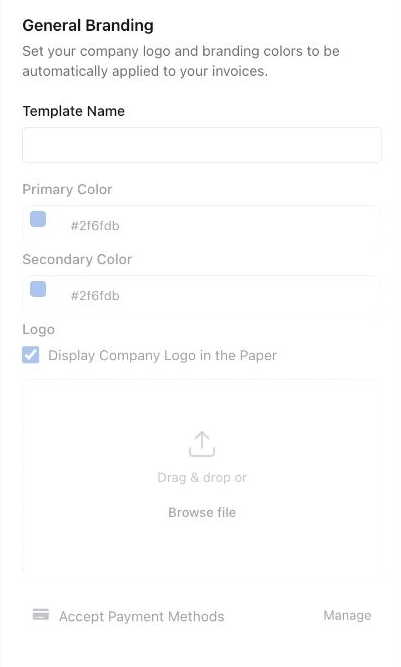
Cropped view of the real unsaved branding editor. The form was canceled; no branding settings or payment methods were changed.
Customize an email
Section titled “Customize an email”- Open Settings → Document Defaults → Email Templates.
- Choose Edit template for the exact email type, such as Invoice or Invoice Reminder. These are separate templates.
- Edit Subject and Body (plain text). Use the Available variables chips to insert values at the cursor.
- Keep the exact spelling and spaces in tokens such as
{Customer Name},{Invoice Number}, or{Payment Link}. Do not invent token names or replace a variable with one customer’s private information. - Use Show preview to check the message layout. This preview can still display tokens; it is not proof that a real recipient’s details or payment link have resolved.
- Choose Save, then review the email form on the intended document before sending. Saving a template does not itself send a message.
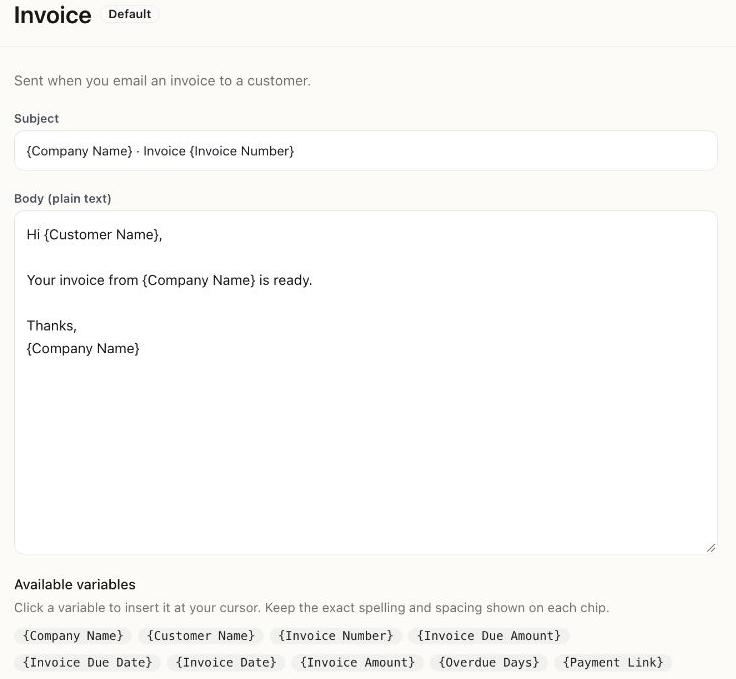
The default invoice email was viewed without editing or sending it. Variables remain visible in the editor.
If the output looks wrong
Section titled “If the output looks wrong”- An old logo or style appears: check the document type and the template selected on the document, then generate a fresh PDF.
- A variable stays literal: insert a supported chip from that email type; verify its spelling and spaces. Do not assume every type supports invoice variables.
- No usable payment option appears: check Payment Methods, company/provider status, and the invoice’s eligibility.
- The email fails: follow invoice email recovery. Changing a template is not a reason to recreate the invoice.
Keep internal notes out of customer-facing notes, terms, and email text. Recheck the actual recipient and attachment every time sensitive billing information is sent.