 Bokeping
Why is the sales tax on an invoice unexpected?
Check exemptions, tax-inclusive pricing, line discounts, and rates before changing tax settings.
In BokepingSettings → Tax Settings → Tax Rates
Start with the invoice inputs. Changing a tax rate used by other documents can create a wider problem without explaining this invoice.
Check these in order
Section titled “Check these in order”- Confirm the customer’s details and whether Exempt from sales tax applies. Keep the exemption evidence required for the sale.
- Review which items or services are taxable and the rate selected on each line.
- Check Amounts Are: prices including tax and prices excluding tax produce different totals.
- Review line discounts. A line discount affects its tax base; the whole-invoice discount and adjustment change the total without changing the tax in the same way.
- Compare the calculated tax and total with the intended sale before sending the invoice.
Example: a price that includes tax
Section titled “Example: a price that includes tax”At an illustrative 10% rate, $100 before tax produces $10 tax and a $110 total. A $110 tax-inclusive amount contains $100 before tax and $10 tax. Selecting the wrong price mode changes what the customer pays.
The 10% rate is only an arithmetic example. Use the rate and taxability that apply to the actual sale, based on the relevant authority or your tax professional.
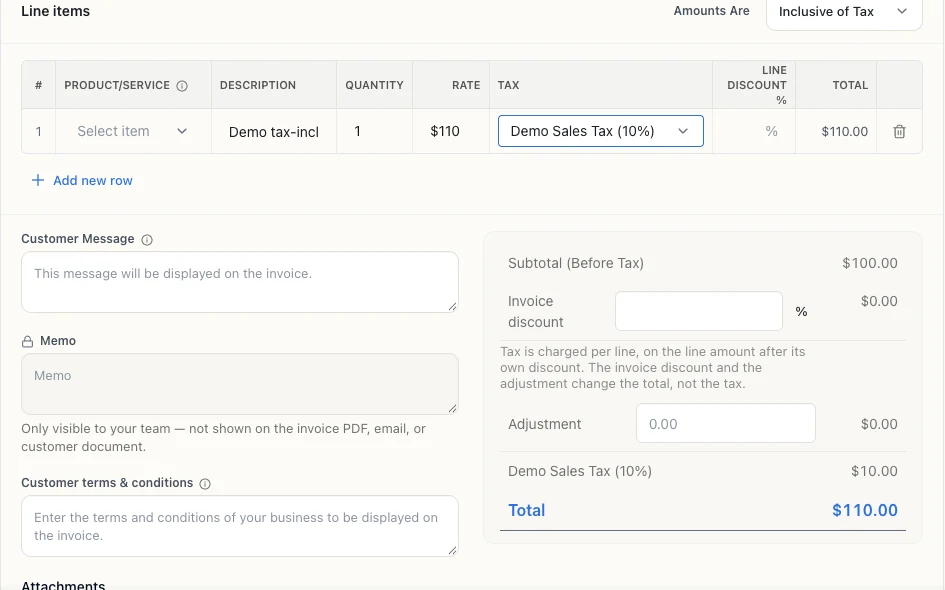
Unsaved demo with an illustrative 10% rate: a tax-inclusive $110 line contains $100 before tax and $10 tax. Check Amounts Are and the line’s tax rate together. This is an arithmetic example, not a recommended sales-tax rate.
If tax is zero
Section titled “If tax is zero”Check customer exemption, item tax settings, and the selected rate before assuming the calculation failed. A zero-tax transaction can be intentional, but it should have a supported reason.
If the invoice was already sent or paid
Section titled “If the invoice was already sent or paid”Review its status and payment links before correcting it. Do not add a second invoice or an arbitrary fee to hide the tax difference. Agree any credit or correction with your accountant and communicate the revised document to the customer when needed.
After correcting the records, review Reports → Sales Tax Liability Summary for the relevant period. Bokeping’s records do not themselves register your business, file the return, or remit tax. See set up and review sales tax.
Related walkthrough
Section titled “Related walkthrough”The tax setup screenshot shows the rate fields. Review an existing invoice’s own line settings before changing a shared tax rate.
Frequently asked questions
Why is the sales tax on my invoice different from what I expected?
Usually one of the invoice inputs explains it. Check, in order, whether the customer is marked Exempt from sales tax, which items are taxable and the rate on each line, the Amounts Are setting, and any line discounts. Then compare the calculated tax and total with the intended sale before sending the invoice.
Why does my invoice show zero sales tax?
Check the customer's exemption, the item tax settings, and the selected rate before assuming the calculation failed. A customer marked Exempt from sales tax can change the result even when a rate is selected on the line. A zero-tax transaction can be intentional, but it should have a supported reason.
What's the difference between prices that include tax and prices that exclude tax?
The Amounts Are setting changes what the customer pays. With an illustrative 10% rate, $100 excluding tax produces $10 tax and a $110 total, while a $110 tax-inclusive amount already contains $100 before tax and $10 tax. The 10% rate is only an arithmetic example; use the rate that applies to the actual sale.
Should I change the tax rate to fix one wrong invoice?
No, not as a first step. A tax rate can be used by other documents, so changing it can create a wider problem without explaining this invoice. Review the invoice's own line settings, customer exemption, Amounts Are, and discounts first, and confirm the correct rate and taxability with the relevant authority or your tax professional.
How do I correct sales tax on an invoice that was already sent or paid?
Review the invoice's status and payment links before correcting it. Do not add a second invoice or an arbitrary fee to hide the tax difference. Agree any credit or correction with your accountant and send the revised document to the customer when needed, then review Reports → Sales Tax Liability Summary for the relevant period.