 Bokeping
Set up Stripe or Forte for your company
Find the company payment configuration and understand provider-specific setup requirements.
In BokepingSettings → Payment Methods
Configure the provider belonging to the company that will receive payments. You need an appropriate provider account and permission to manage the company’s payment settings. Processing charges are separate from the Bokeping software trial.
Choose the provider
Section titled “Choose the provider”Open Settings → Payment Methods. Review the Stripe or Forte card and choose Set it up for an unconfigured provider. For an existing connection, confirm the intended company before editing it.
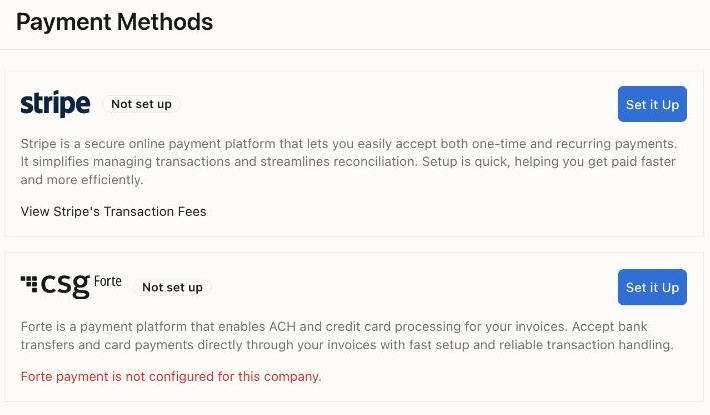
This demo company has no payment provider connected. Not set up means the company cannot yet offer that provider on its invoices.
One provider connection per company: choose Stripe or Forte. If one is already configured, the other provider’s setup is unavailable. Switching Offer on invoices off keeps the existing connection, so it does not free the company to connect the other provider.
Stripe: company API keys
Section titled “Stripe: company API keys”The company-key setup form contains:
- Environment: Sandbox (test mode) or Production (live).
- Secret key and Publishable key: credentials from the same Stripe account and environment.
Review the form’s permissions guidance if using a restricted key. Choose Save and enable for initial setup. Bokeping attempts to configure the webhook when saving; inspect any error and the resulting connection status instead of assuming pasted keys were accepted.
If your deployment presents a Stripe Connect authorization flow instead of API-key fields, follow that displayed flow for the intended Stripe account. The two setup methods are alternatives; do not configure a second provider account to work around a failed connection.
Forte: account and webhook configuration
Section titled “Forte: account and webhook configuration”The Forte setup form includes Environment, API URL, Organization ID, Location ID, API Access ID, API Secure Key, and Webhook Secret. Use the values supplied for your own Forte account and selected environment.
Copy the exact webhook URL shown in Bokeping to Forte’s webhook settings, and follow the form’s event and secret instructions. The URL is read-only in Bokeping. Choose Save and enable, then check the resulting status and any validation message.
After connecting Forte, review Card and Bank account (eCheck). Customers can choose from the methods you turn on. Bank payments also require your Forte merchant account to be approved for eCheck; turning on the switch does not grant that approval. Keep at least one method on while Forte is offered on invoices.
Pause collection or switch providers
Section titled “Pause collection or switch providers”| What you want to do | Action | Effect |
|---|---|---|
| Temporarily stop accepting new online payments | Turn Offer on invoices off and review the confirmation. | Customers cannot pay through that provider, including checkout pages already open. The connection and configuration are kept. |
| Resume using the same connection | Turn Offer on invoices back on. | The provider can be offered again; check its status and the invoice’s Payment Options. |
| Change from Stripe to Forte, or the reverse | Review the existing provider’s More actions → Delete connection confirmation before removing it, then set up the other provider. | Off alone is insufficient. Deleting a connection is not the reversible pause control. |
Before deleting a connection, read the confirmation’s impact on unpaid invoices and confirm how customers will pay them afterward. Once the new provider is ready, review Payment Options on outstanding invoices and check their customer-facing payment pages. Do not assume existing invoices automatically offer the replacement.
Before accepting live payments
Section titled “Before accepting live payments”Check the company, provider account, environment, enabled payment options, and provider setup requirements. Sandbox configuration is not a live connection. Inspect any payment-sync warning before relying on automatic bookkeeping.
A configured provider does not mean an invoice is paid. Verify individual payment status and reconcile gross receipts, fees, and net payouts using payout differences.
Never send secret keys, card numbers, or webhook secrets in a support request or public screenshot. Share the provider name and a non-sensitive error description instead.