 Bokeping
Set invoice numbering, notes, and terms
Choose numbering for new invoices and edit reusable document notes without changing old records.
In BokepingSettings → Document Defaults
Document defaults save repeated setup for future documents. They do not renumber existing invoices or prove that an old document has been updated.
Where to go: Settings → Document Defaults → Defaults.
Choose invoice numbering
Section titled “Choose invoice numbering”- Under Invoice Numbering, choose Company-wide (default) for one shared sequence, or Per customer for a fixed random prefix and separate sequence for each customer.
- Select Number increment, from 1 through 9. An increment of 1 creates consecutive sequence numbers; an increment of 2 advances by two each time.
- Review the example and choose Save numbering settings.
- Start a new invoice to confirm the numbering behavior. Do not create or post dummy invoices in live books merely to reserve numbers.
A new sequence starts at 1. Existing invoices and existing drafts keep their numbers. Switching methods does not reset either sequence, so it should not be used as a way to restart numbering.
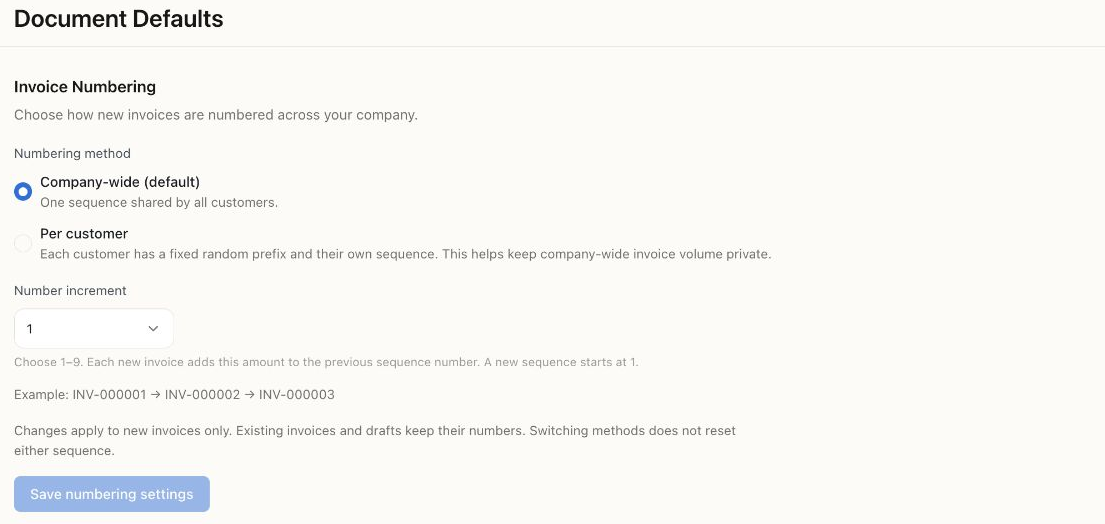
The Demo company uses the company-wide sequence with increment 1. Settings were inspected without changing them.
Set reusable notes and terms
Section titled “Set reusable notes and terms”Under Document types, choose Edit beside Invoices, Estimates, Sales Receipts, or Credit Memos. Review the available customer-note/receipt-message and terms fields, save the intended text, and open a new document of that type to verify it.
For example, a short invoice note could say “Thank you for choosing Cedar & Pine.” Keep payment instructions accurate and use your approved terms. A message that says “Net 30” is not a replacement for setting the actual payment terms and due date on an invoice.
Choose the right setting
Section titled “Choose the right setting”| You want to change | Use |
|---|---|
| Numbering, default notes, or terms | Document Defaults. |
| PDF colors, logo, or a document branding template | Document Templates. |
| Email subject and message | Email Templates, covered in the same template guide. |
| A single invoice’s date, recipient, or amount | The invoice itself. |
Check before sending
Section titled “Check before sending”Review the new document’s number, due date, notes, terms, and PDF. Check for old bank instructions or wording that does not apply to this customer. Previously downloaded PDFs and emails already sent do not change when you save new defaults.