 Bokeping
Organize items into categories
Group products and services so you can find the right items without changing their accounting treatment.
In BokepingProducts & Inventory → Categories
Use categories to organize reusable items, such as maintenance services, materials, and delivery charges. An item category is different from an income, expense, or inventory account.
Where to go: Products & Inventory → Categories.
Create a category
Section titled “Create a category”- Check the existing category names first. Reuse an appropriate category instead of creating a slightly different duplicate.
- Choose New Category.
- Enter Category Name and a short Description explaining what belongs in the group.
- Choose Save, then confirm the category appears in the list.
- Open an item through Products & Inventory → Items, choose the category in its Category field, and save the item.
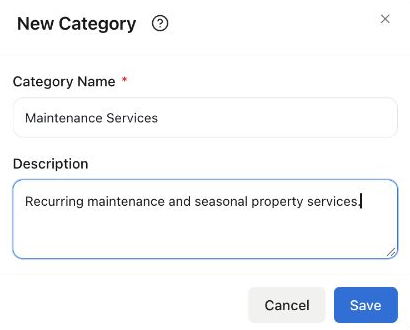
Filled Demo example, canceled without saving. “Maintenance Services” describes a group of items; it does not create income or post a sale.
Example: one group, several services
Section titled “Example: one group, several services”Place Monthly Property Maintenance and Seasonal Property Inspection in the same category when that helps your team find them. Each item still keeps its own description, price, sales/purchase settings, and accounting accounts.
Check the result
Section titled “Check the result”In the category list, use the item-count link to view items in that category. Confirm the expected items are included and check the category on each item if the count looks wrong. Creating the category alone does not automatically assign your existing items to it.
Renaming a category is an organizational change. It is not a way to reclassify past sales, correct inventory value, or change tax treatment. Review those settings on the item and the affected source documents.