 Bokeping
Import bank transactions from a file
Bring a bank statement into the right account and review it without duplicate entries.
In BokepingBanking → Bank transactions
Use a file import when you have a statement download or a gap in your bank feed. The import brings activity into your review workflow; you still need to check how it belongs in your books.
Where to go: Banking → Bank transactions → select an account → Import.
Choose a file
Section titled “Choose a file”| Format | How it is handled |
|---|---|
| CSV, XLSX, XLS | Map your columns to the fields requested in the next step. |
| OFX, QFX, QBO | Date, amount, description, and reference are read from the structured bank file. Custom columns are not supported. |
The upload screen accepts files up to 5 MB. A .qbo file contains bank or card activity, not a complete QuickBooks Online company backup.
Upload and review
Section titled “Upload and review”- Open the correct company and select the bank or credit card account in Bank transactions.
- Choose Import. Check Importing to before choosing a file; it shows the target account and currency.
- If preparing a spreadsheet, use Download template to check the columns. Replace sample rows with your actual records, and use names that exist in your books where required.
- Choose the file, then select Next. For spreadsheets, review the column mapping, including dates and money-in or money-out amounts.
- Review the rows and validation messages. Correct errors and investigate potential duplicates before confirming the import.
- Review Results. Return to the selected account’s Pending tab and compare the imported date range and amounts with the statement.
Example: one receipt and one withdrawal
Section titled “Example: one receipt and one withdrawal”A fictional statement contains a $350 customer receipt and $300 supplier payment. Both already have bookkeeping records, so importing them should create review rows for matching.
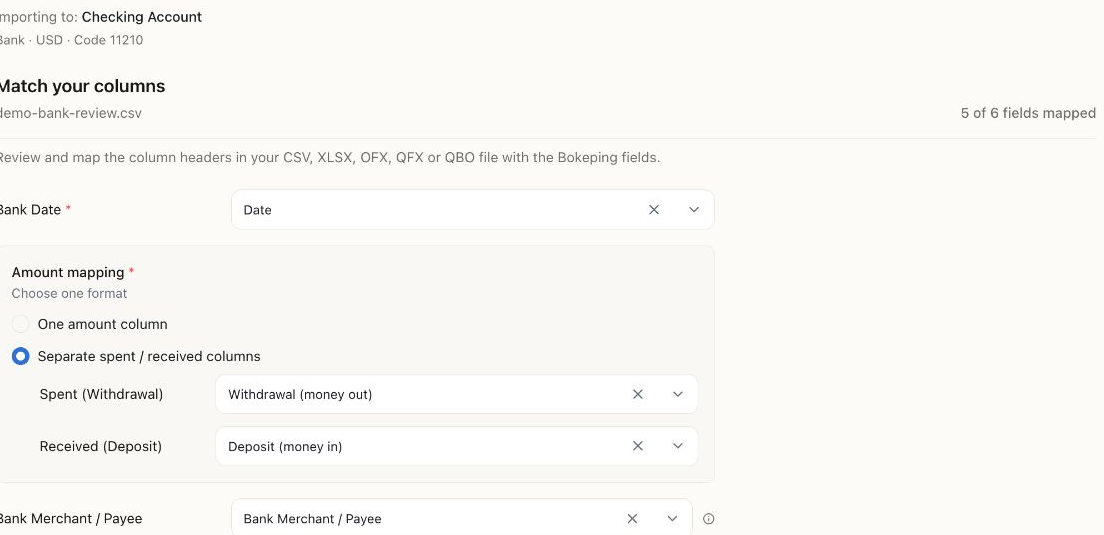
Use one amount format consistently. In this sample, money out maps to Spent and money in maps to Received. The target is Checking Account, USD.
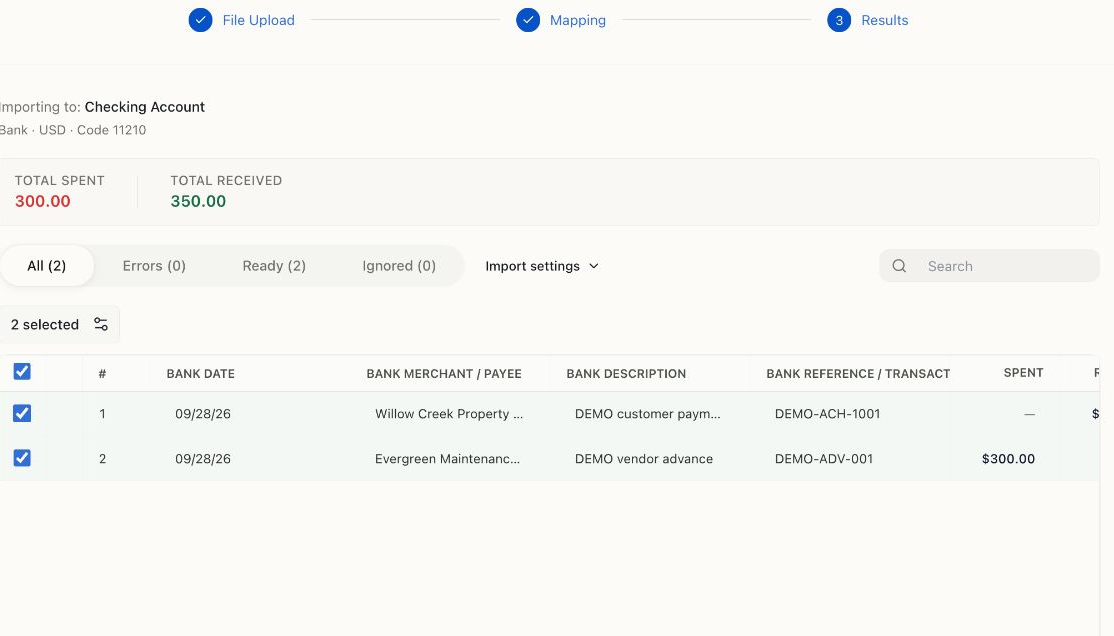
The two Demo rows were imported successfully and verified in Pending. Importing them did not add another $350 receipt or $300 payment to the ledger. Your statement dates and amounts will differ.
After a successful import, the app may return directly to the account. Confirm the new rows in Pending even if the Results screen is no longer open. Next, match to the existing records.
Avoid overlapping imports
Section titled “Avoid overlapping imports”If you also use a bank feed, identify the exact missing range first. Do not import a whole statement repeatedly just because one transaction is missing.
Check both Posted and Excluded before deciding a row was not imported. Match activity to records already in your books rather than categorizing it as another sale or expense.
If the file is rejected
Section titled “If the file is rejected”Check the file format, size, column mapping, and date format. A header-only spreadsheet contains no transactions. For a structured bank file, download a fresh copy from your bank instead of renaming another file to .qbo or .ofx.
If only some rows succeed, review the results before retrying. Keep the source file and import result so you can identify what has already been brought in.
Next: Review bank transactions, then reconcile to the statement.
For skipped rows, mapping problems, or an interrupted result, see import recovery.