 Bokeping
Reconcile a bank account
Compare your books with a statement and finish with a zero difference.
In BokepingBanking → Reconcile
Reconciliation compares your recorded transactions with a bank or credit card statement. Matching imported activity is useful preparation, but reconciliation is a separate check.
Where to go: Banking → Reconcile. The page heading is Reconciliation.
Before you start
Section titled “Before you start”Have the statement’s ending date and ending balance. Review bank activity for the period and make sure the account’s opening balance is correct.
Choose the actual bank or credit card account from the list. Other eligible accounts may be marked Supporting schedule; this guide concerns reconciling a bank statement.
Start or resume a reconciliation
Section titled “Start or resume a reconciliation”- Find the account, using Search accounts if necessary. If it already has a draft, choose Resume rather than starting another reconciliation.
- For a new reconciliation, choose Start on the account’s row. In the setup screen, verify the account and Beginning Balance, then enter Statement Ending Balance and Statement End Date from the statement. The end date cannot be in the future.
- Review any service-charge or interest fields. Leave them at zero when that activity is already recorded; entering it again would duplicate it. Choose Start reconciling.
- Check the beginning balance and statement information in the workspace before clearing any transactions.
The overview also supports batch entry using Statement / as-of date, Ending balance, and Save entered drafts. Save those entries before leaving the overview. Choosing Start with unsaved entries can show Unsaved statement details; Discard and continue opens the separate setup screen without carrying those unsaved values across.
Compare the transactions
Section titled “Compare the transactions”- Compare each listed transaction with the statement and select those that cleared. Confirm suggested transactions yourself.
- Review the difference after each selection. Investigate missing, duplicate, or incorrectly dated entries until it is $0.00.
- Review unchecked items. They may correctly remain outstanding if a check or transfer has not cleared.
- Choose Finish when the records and statement agree, and review the confirmation before completing it.
If you need to stop, use Save and return through Resume. Saving progress is not the same as finishing the reconciliation.
Read the difference in the workspace
Section titled “Read the difference in the workspace”For this fictional statement, the beginning balance is $0, a $350 receipt and a $300 payment have cleared, and the statement ends at $50:
$0 + $350 − $300 = $50 cleared balance. The difference from the $50 statement is $0.
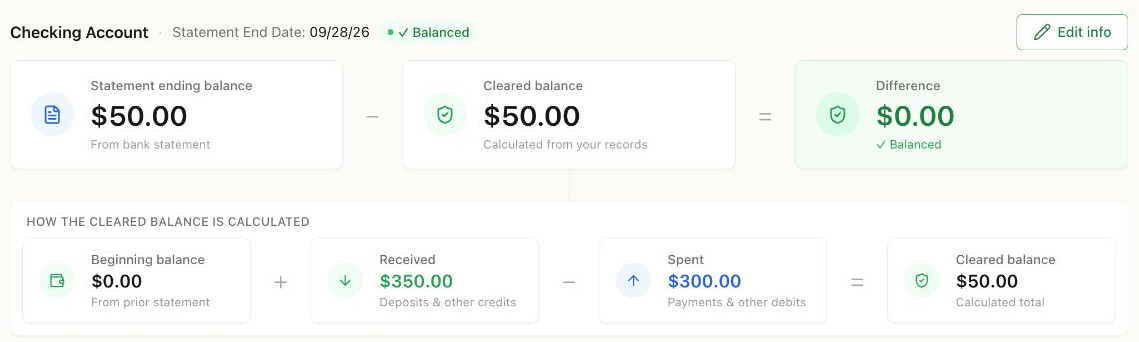
The screenshot shows a balanced working selection in the Demo company. It is not a completed reconciliation or a real bank statement. Select transactions only when they appear on your actual statement.
If Save or Finish returns an error, do not assume progress was saved or the period completed. Reopen the account through Reconcile, check whether Resume is available, and verify its selections and History before continuing. Keep the statement details and contact support if the error persists.
If the difference is not zero
Section titled “If the difference is not zero”Check the statement ending date and balance, the beginning balance, and whether you selected the correct account. Then check for bank fees, interest, duplicates, or transactions recorded in the wrong period.
If Bokeping reports that the beginning balance has changed, review and refresh its source before rechecking the difference. Record a genuinely missing transaction from its source workflow, then return to reconciliation.
An adjustment creates a real accounting entry. Do not use it just to make the difference disappear without understanding the cause.
Check the result
Section titled “Check the result”Use History to review completed reconciliations. Keep the source statement with your records. Unchecked transactions remain outstanding for a later statement.
Related: Review bank transactions and prepare your opening balances.