 Bokeping
Set up a recurring invoice
Bill the same customer on a schedule, as a draft you review or an invoice posted straight to the books.
In BokepingSales & Receivables → Recurring Invoices
A recurring invoice is a template that creates an invoice on a schedule: a monthly retainer, rent, a maintenance contract. Each period’s invoice is either saved as a draft for you to review or posted to the books on its date. Customers pay each invoice the usual way, including the online payment link when you have online payments set up — or, if you offer it, they can enroll once and have each invoice charged to their saved bank account or card automatically (see Automatic payments).
Where to go: Sales & Receivables → Recurring Invoices → New recurring invoice. To start from an invoice you already have, open Sales & Receivables → Invoices, use the row’s ⋮ menu and choose Make recurring.
Recurring invoices are available on the Standard and Pro plans. On the Free plan the page is read-only.
Before you start
Section titled “Before you start”Have the customer, the items or services, their prices, and the payment terms ready. Decide whether each invoice should wait for your review (a draft) or go straight into the books (posted). If your company tracks warehouses or branches, know which one these invoices belong to; the template needs it.
Set up the template
Section titled “Set up the template”- Enter a Template Name you will recognize in the list, such as Monthly maintenance — Willow Creek.
- Select the Customer and the Payment Terms. The terms set each invoice’s due date from its invoice date.
- If Warehouse or Branch appears, select one. Every invoice the template creates carries it.
- Set Repeats (daily, weekly, monthly, or yearly) and Every for the interval, for example every 1 month or every 2 weeks.
- Pick the First Invoice date. A monthly template dated the 31st falls on the last day of shorter months and returns to the 31st afterward.
- Choose how it Ends: Never, On a date, or After a number of invoices.
- Under Each Invoice Is, choose Saved as a draft for review or Posted to the books. A posted template can also Email Automatically: each invoice is emailed to the customer as soon as it is created, using your invoice email settings.
- Offer automatic payment, if you want to: customers can then enroll from the invoice’s payment page, and each later invoice of this template is charged to their saved bank account or card 3 days before it is due. The switch needs online payments to be set up first. See Automatic payments.
- Add the lines: Product/Service, Description, Quantity, Rate, tax, and any line discount. Each period bills the prices saved here, not the product’s current price; change the template to change future invoices.
- Add the Message on the Invoice and Terms & Conditions that should appear on every invoice.
- Check Next invoices on the right. It lists the next six invoice dates, due dates, and the estimated amount, following the schedule exactly.
- Save.
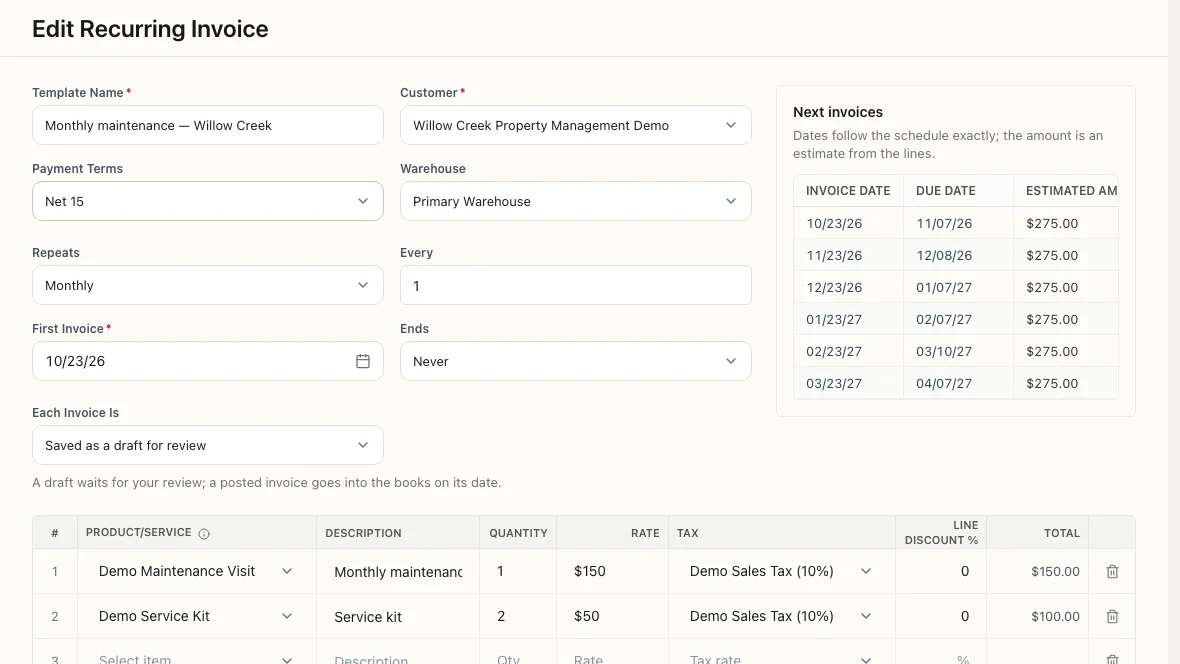
The preview shows dates and an estimate from the lines. The real invoice is calculated when it is created.
What happens on each date
Section titled “What happens on each date”Bokeping checks every hour and creates the invoice on the scheduled date, in your company’s time zone. The invoice is dated that day, its due date follows the payment terms, and its source is shown as Recurring in the invoice list and details. The invoice’s details also name the template it came from and the period, with a link to the template.
- Saved as a draft for review: the invoice appears under Invoices as a Draft without an invoice number. Review it, then post it as you would any draft. It takes its number when posted.
- Posted to the books: the invoice is posted on its date. With Email Automatically on, it is emailed right away; the invoice’s own delivery status shows whether the email went out.
Invoices created by a template count toward your plan’s monthly allowance like any other invoice.
Review what a template has done
Section titled “Review what a template has done”Open the template from the list. The details show the customer, amount per period, frequency, first and next invoice dates, how it ends, and how many invoices it has created so far.
- Upcoming lists the next periods.
- History lists every period the template has handled: Created with a link to the invoice, Failed or Skipped with the reason, or Creating while it is in progress. The Email column is the invoice’s own delivery record: Sent with the date, Marked as sent when a person recorded it, Delivery failed, Queued, or Not sent for a posted invoice nobody has emailed. A draft shows nothing there until it is posted.
The first period ran on its scheduled date and created a draft invoice.
For a Failed or Skipped period, Create draft creates that period’s invoice now, dated on the period, as a draft under your own permission. It is not emailed, and it does not change the template’s next date.
Automatic payments
Section titled “Automatic payments”With Offer automatic payment on, each invoice’s payment page shows the automatic payment authorization below the payment method: the schedule, the amount rule (the invoice’s open balance, with no fee added), the 3-day timing, how a changed amount is announced, and how to cancel. The customer enters the card or bank account in CSG Forte’s secure window, so the number never reaches Bokeping; the terms then name it by the last four digits Forte returns, and the customer ticks the box below them to agree, pays the current invoice, and the payment method they used is saved for the later ones. The terms are in English, and the English text governs; a customer using the page in Chinese or Spanish is told so in their language. You cannot enroll a customer yourself; the customer agrees on their own page, and the record keeps the terms word for word as they read them, when, and from where. The customer is emailed a copy of the authorization right away.
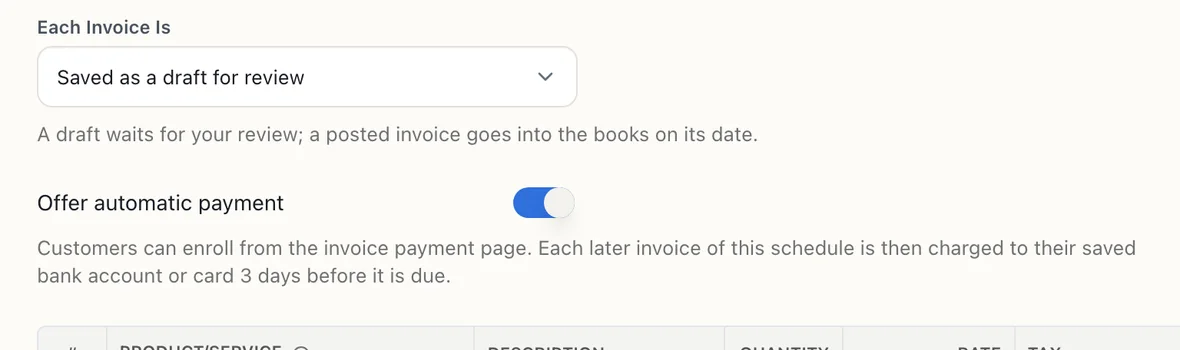
The switch is per template. It needs an online payment gateway, because the customer enrolls from the payment page.
Bank accounts must be validated
Section titled “Bank accounts must be validated”A bank account is saved for automatic payment only when Forte validates it on the customer’s first payment, which card networks and the ACH rules expect before a business debits an account on its own. Forte does this with its Validate service, which your Forte location has to subscribe to.
- If your location does not use Validate, the customer’s payment still goes through, but automatic payment is not set up. The customer is told they can set it up with a card on their next invoice, and owners and admins get a notification (at most once a month) asking you to have Forte turn on Validate for your location.
- If Validate could not reach the bank’s records just then, the payment goes through and the customer can enroll again from their next invoice.
- If Validate declines the account, the payment itself is declined, as with any bank payment.
Cards need nothing extra: the first payment is sent to the card networks as the customer’s own charge that stores the card, and every automatic charge after it as a recurring charge on that stored card.
Which items a template can bill
Section titled “Which items a template can bill”A template that offers automatic payment can only bill services and non-inventory products. Saving one with an inventory item on a line is refused, because each period would take stock and charge the customer with no one checking that the goods can go out. Remove those lines, or turn automatic payment off.
From then on, for each invoice the template creates after the customer enrolled:
- The invoice email says so under the Pay button: Automatic payment is on: $40.00 will be charged to the bank account ending 4321 on 12/20/26. If you pay sooner, the automatic charge is skipped.
- Bokeping charges the open balance to the saved method 3 days before the due date, or on the invoice date when that is later, and records the payment against the invoice like any online payment. A charge can come later than that day, for example when the invoice is sent late or charging is paused; the terms say so.
- When an invoice’s amount differs from the customer’s previous payment (you changed the price, or they paid part of it), the customer must be told the new amount at least 10 days before it is charged. The invoice email names the amount and the charge date, which is then at least 10 days after the email. If the amount changes again after the email went out, nothing is charged; owners and admins are told to send the invoice again, and the 10 days start from that email.
- The customer agreed to receive each invoice before it is charged, so an invoice is only charged once it has been sent: emailed, or marked as sent. A template that creates drafts leaves sending to you. When a charge falls due on an invoice nobody has sent, nothing is charged, owners and admins are notified once, and the invoice is charged within the hour after it is sent. A charge is made once per invoice; it is never retried on its own.
- If the charge is declined, company owners and admins are notified, the invoice stays open with its payment link, and the customer can pay it there or you can record the payment. You can also have it charged again (below).
- If the customer’s bank later returns the debit, the payment is reversed, the invoice reopens, the customer’s automatic payments on this template stop, and the saved bank account is no longer used. Owners and admins are notified. The customer can enroll again from their next invoice.
What the customer is emailed
Section titled “What the customer is emailed”Besides the invoice emails, the customer gets a short email from Bokeping, on your company’s behalf, each time something happens to their automatic payments. It goes to the address they gave when they enrolled, or to the customer’s email if they gave none.
- Payment made: the amount, the invoice, and the card or bank account it was charged to.
- Payment declined: nothing was charged and the invoice is still open. When you can still charge it again, the email says the customer will be told the date first.
- Charge again scheduled: the amount, the method, and the day it will be charged (see below).
- Returned by the bank: the payment was reversed and automatic payments from that account have stopped.
- Automatic payments stopped: whether the customer cancelled them or you stopped them (from the template’s Automatic Payments tab, by turning the offer off, or by archiving the template). A customer who enrolls again with another method gets the new authorization’s copy instead.
The template’s details have an Automatic Payments tab listing every customer who enrolled: the method charged, the next charge and invoice, when they authorized it, and — for stopped ones — when and by whom. Stop ends a customer’s automatic payments from your side; a charge already submitted follows its own result. The list shows On · 1 enrolled in its Autopay column.
Customers see the same under Automatic Payments in their customer portal and can stop it there. Turning the switch off on the template stops every enrolled customer at once; archiving the template does too.
Pause charging for a while
Section titled “Pause charging for a while”Pause charging on the Automatic Payments tab stops all automatic charges on the template’s invoices while keeping every customer enrolled; turning the switch off, by contrast, ends their authorizations and they would have to enroll again. Invoices are still created and sent on schedule. The list’s Autopay column and each invoice’s Automatic payment block say Paused, and customers see in their portal that automatic payments are paused. Resume charging restarts at the next hourly run, including invoices whose charge day passed while it was paused.
Pausing the template itself (below) is a different switch: it stops new invoices, not the charges of invoices already sent.
On the invoice
Section titled “On the invoice”A recurring invoice’s details show an Automatic payment block whenever a customer’s automatic payment covers it: Scheduled with the day it will be charged and the method, Waiting to be sent when it has not been sent to the customer yet, Amount changed when the customer has not yet been told a new amount, Paid automatically, Processing while the bank’s answer is not in, Declined with the reason the bank gave, Not submitted when the charge stopped before it reached the payment processor (nothing was charged), or Returned by the bank.
Charge a declined payment again
Section titled “Charge a declined payment again”After a decline, Charge again in that block does not charge right away. The customer is emailed the amount, the method and the date first, and the invoice’s open balance is charged to the same saved method on that date, under the same authorization. The date is 3 days later, or 10 days later when the amount differs from their previous payment and they were never told it. The confirmation names the amount, the method and the date; once you confirm, the block says Will be charged again on that date.
If the invoice is paid before then, or the customer cancels automatic payments, nothing is charged. If the open balance changes after the email, nothing is charged either; ask again, and the customer is emailed the new amount. If the customer cannot be emailed (no address, or the email fails), nothing is scheduled.
A customer’s terms allow this at most twice per invoice. It is only offered when the customer enrolled under terms that include it (from October 24, 2026); for a customer who enrolled earlier, the block says so, and they pay from the payment page. It is also not offered once their automatic payments are stopped or the saved method is no longer in use. The result of the new charge reaches owners and admins and the customer the same way as a scheduled charge’s.
Create the next invoice now
Section titled “Create the next invoice now”Create this period now, in the template’s ⋮ menu or its details, creates the next scheduled invoice right away instead of within the hour. It is the scheduled period brought forward: the invoice carries that period’s date, is a draft or posted as the template says, is emailed if the template emails, and the schedule moves on to the following period. The confirmation names the date. It runs on your own permission, so posting it needs Post Each Period when the template posts.
Pause, resume, edit, duplicate, or delete
Section titled “Pause, resume, edit, duplicate, or delete”- Pause stops the template; no invoice is created until you Resume. Periods that fell due while it was paused are recorded as Skipped, and the next invoice follows the next future date, which the confirmation shows.
- Edit changes future invoices only. Invoices already created are not touched.
- Duplicate opens a new template with the same customer, lines, terms, schedule, and settings under Copy of the original name. Pick its First Invoice date and save.
- Delete removes a template that never created an invoice. A template with history is archived instead: no further periods, and its history and invoices stay.
When a template pauses on its own
Section titled “When a template pauses on its own”Before each period, Bokeping checks that everything the template points to can still be used. If the customer, a product, a tax rate, or an account has been made inactive or deleted, if a required warehouse or branch is missing, if a product on a template that offers automatic payment has since become an inventory item, or if the person who last saved the template has left the company or lost the permission, that period is recorded as Failed with the reason and the template pauses. Company owners and admins are notified. Fix the cause, open the template, and Resume.
A period that falls inside a closed accounting period is recorded as Failed, and the schedule moves on. After the period is reopened, use Create draft on that row.
Permissions
Section titled “Permissions”Creating, editing, pausing, deleting, and running templates uses the Recurring Invoices permissions in the role. Choosing Posted to the books or Email Automatically also needs Post Each Period, which is off by default for custom roles because the template then writes invoices into the books without anyone reviewing them. Offering automatic payment, stopping a customer’s authorization, and charging a declined payment again is Automatic Payments, on by default.
Not included
Section titled “Not included”There are no recurring bills, and no charge without an invoice: automatic payment always settles an invoice the template created, after the customer enrolled on their own payment page.