 Bokeping
AI assistant permissions and privacy
What each AI assistant permission allows, which details are never shared, and how owners can limit ledger detail.
An AI assistant connected to Bokeping is limited in four ways at once. Each limit applies on every request, so a change you make takes effect the next time the assistant asks for data.
- The company you chose. One connection reaches one company.
- Your role in that company. The assistant can never read or create more than you can.
- The permissions you ticked. Each permission covers one kind of record or task.
- The company’s ledger-detail setting. Owners and admins can limit every connection to the company at once.
Permissions that only read
Section titled “Permissions that only read”When you connect, these start ticked if your AI app asks for them. Untick any you do not need.
| Permission | What the assistant can read |
|---|---|
| View customers | Customer names, contact details, and balances |
| View vendors | Vendor names, contact details, and balances |
| View invoices | Invoices and credit memos, and their payment status |
| View bills | Vendor bills and vendor credits, and their payment status |
| View payments | Payments received from customers and payments made to vendors |
| View expenses | Expenses and their expense-account lines |
| View items | Products and services, prices, and stock on hand |
| View chart of accounts | Account names, types, and balances |
| View financial reports | Balance sheet, profit and loss, trial balance, cash flow, A/R and A/P aging, inventory valuation, and sales tax liability |
| View journal entries | Manual journals and the general ledger: every entry with its accounts, amounts, and memo |
| View customer and vendor activity | All transactions with one customer or vendor in a period, with opening and closing balances |
| View bank feeds | Bank and cash balances, bank transactions waiting for review or already posted, and reconciliation records, including the bank’s payee and description text |
| View company setup | Accounting basis, fiscal year, tax entity, period lock, plan limits, and migration facts. No records |
| View imports and migration checks | Imports that already exist: their preview, row problems, and checks. Never uploads or imports |
| View close readiness | The period-close review for a date: blockers, warnings, trial balance, and the receivable and payable checks. Never locks or unlocks a period |
| View 1099 reporting | The 1099 summary and payments for a year: reportable vendors, masked tax ID, and W-9 status |
| View purchase orders | Purchase orders, their lines, and how much has been converted to bills |
| View stock movements | Every movement in and out of a tracked item, with its cost and running quantity |
| View financial activity | Who created, changed, voided, or exported financial records, and when. Never the full audit log, and never what a change contained |
| Download files | One-time links to invoice PDFs and attachments of records it can already view. Each link works once, for 10 minutes, for you to open. The file itself is never sent to the AI service |
Permissions that change your books
Section titled “Permissions that change your books”These sit in the Can change your books group and start unticked. For every one of them, the assistant must show you what it is about to create and get your yes. The confirmation is valid for 10 minutes and covers that one record only.
| Permission | What it allows | What it never does |
|---|---|---|
| Create customers | Add a new customer | Change or delete a customer |
| Create vendors | Add a new vendor | Change or delete a vendor |
| Create items | Add a new product or service | Set an opening quantity, change a price, or delete an item |
| Create draft invoices | Save a new invoice as a draft | Post, edit, send, or delete an invoice |
| Create draft bills | Save a new bill as a draft | Open, pay, edit, or delete a bill |
| Create draft expenses | Save a new expense as a draft | Post an expense or move money |
| Draft purchase orders | Save a new purchase order as a draft | Open, send, or convert it to a bill |
| Prepare imports | Map the columns of a file you uploaded, choose its settings and rows, and run the preview | Start the import. You do that on the import page |
| Prepare journal entries | Prepare an adjusting entry for you to review | Post, edit, reverse, or delete an entry. You post it from the journal page |
| Attach files | Attach a file already uploaded to Bokeping to a draft invoice, bill, or expense | Upload, download, remove, or replace a file, or touch a posted document |
Draft invoices, bills, and expenses count toward your plan’s monthly document allowance like any other draft. New customers, vendors, items, and purchase orders do not.
What is never shared
Section titled “What is never shared”Whatever permissions you grant, Bokeping never sends an AI assistant:
- full tax IDs (the 1099 permission shows a masked ID only),
- bank account or routing numbers,
- card data,
- passwords or access tokens.
Files are not sent either. With Download files, the assistant can only hand you a one-time link; you open the file in your own browser.
Where your data goes
Section titled “Where your data goes”Everything the assistant reads from Bokeping is sent to the AI service you use with it, such as Anthropic for Claude or OpenAI for Codex. Bokeping has no agreement with that provider and does not control how it stores or uses your data; the approval page says so before you allow access. That depends on your own agreement with the provider and the settings of your account there, for example:
- whether your conversations may be used to train its models,
- how long conversations are kept,
- who else in your AI workspace can see them.
Check these settings before you connect. If the books belong to someone else, such as a client, make sure your engagement and your firm’s policies allow sharing them with that AI service.
Owners and admins: company-wide ledger detail
Section titled “Owners and admins: company-wide ledger detail”An owner or admin can stop every AI connection to the company from receiving records, without disconnecting anyone.
- Open Settings → Team & Access → Team.
- Find Share ledger detail with connected AI agents. It is on by default.
- Turn it off and confirm Turn off ledger detail for AI agents?
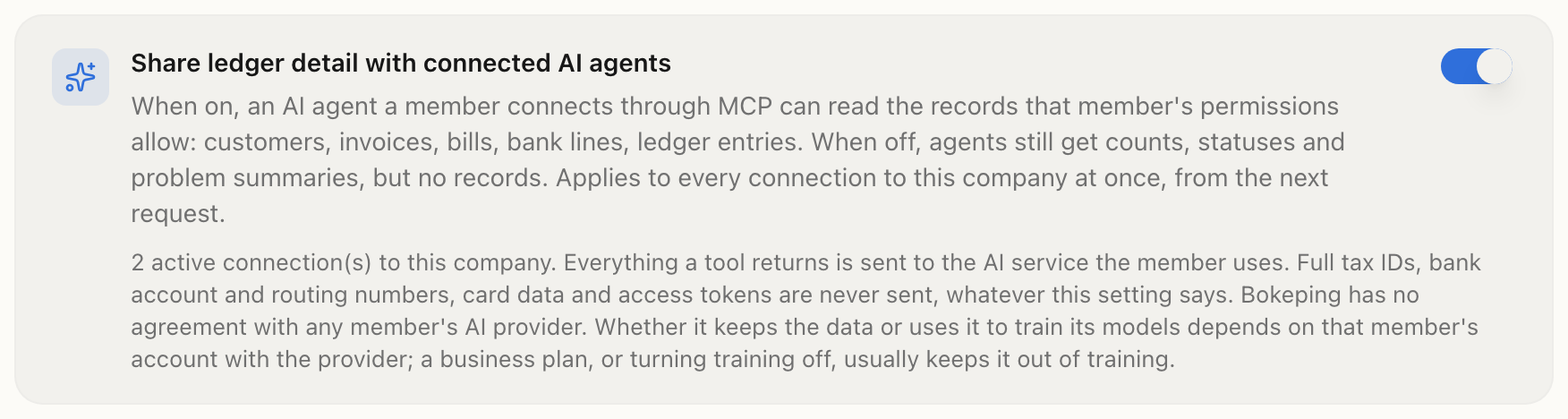
Setting shown on the Team page of the fictional company Harbor Lane Bakery. It was viewed only, not changed.
While it is off, assistants still get counts, statuses, and problem summaries, but no customer, invoice, bill, bank, or ledger records. The change applies to every connection from its next request. Nobody is disconnected, and anyone who connects while it is off sees a notice on the approval page. Turn it back on the same way. Bokeping records who changed the setting in the audit log.
To end a specific connection instead, the person who made it revokes it from Connected Agents.
Review what assistants did
Section titled “Review what assistants did”The company’s Audit Log records when an AI assistant read a financial report, created a record after your confirmation, or issued and used a download link, along with the person whose connection it was. Records an assistant creates also appear in the usual lists, like any other record.