 Bokeping
Create and send an invoice
Bill a customer and check the document before sending it.
In BokepingSales & Receivables → Invoices
Create an invoice when a customer owes you for a sale. Saving a draft, issuing an invoice, sending it, and receiving payment are separate actions.
Where to go: Sales & Receivables → Invoices → New Invoice.
Before you start
Section titled “Before you start”Check the selected company and the customer’s details. Have the sale date, payment terms, descriptions, prices, and applicable tax ready. Add the customer first if they are not already in your books.
Enter the invoice
Section titled “Enter the invoice”- Select Customer and review the Bill to details.
- Check Invoice No., Invoice Date, Due Date, and Payment terms. The invoice number is the document’s unique number; Reference No. is for an external reference such as the customer’s purchase order.
- Under Line items, choose Product/Service or enter a description for a service line. Add Quantity, Rate, and any line tax or discount.
- Check Amounts Are so you know whether prices include tax.
- Review the subtotal, tax, and total. Tax is calculated per line after its line discount. The whole-invoice discount and adjustment change the total, not the tax.
- Complete the customer-facing notes and any internal memo, then choose the appropriate save action.
Choose what happens next
Section titled “Choose what happens next”| Action | Use it when |
|---|---|
| Save as Draft | You need to finish or review the document later. |
| Save and close | The invoice is ready to save, without using the email-review flow. |
| More send options → Review and send | You are ready to review the recipient and email before sending. |
| More send options → Save & New | You want to save this invoice and begin another. |
In the sending flow, check the recipient and message before confirming delivery. Afterward, return to the invoice list and review Status and Balance due. An unpaid invoice is not evidence that an email has or has not been delivered.
Check the saved invoice
Section titled “Check the saved invoice”Open the invoice from the list. For a $500 maintenance-service invoice with no payment yet, check Invoice total $500, Received $0, and Balance due $500. The activity should show that it was posted and is awaiting payment.
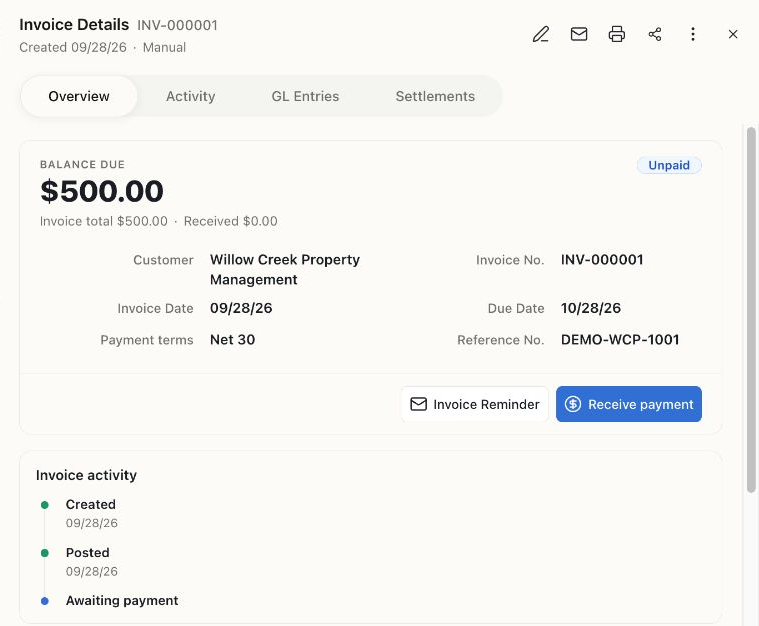
This fictional invoice was saved without sending an email. Posting, sending, and receiving payment are separate steps.
What the customer can see
Section titled “What the customer can see”- Customer message appears on the invoice PDF under Notes; it is not the email message.
- Customer terms & conditions appears on the PDF. Use Payment terms for when payment is due.
- Memo is internal and is not shown on the customer document or email.
Preview the document before sending, especially after changing your branding or customer details.
Receive payment
Section titled “Receive payment”Use Payment Options on the invoice to select a configured online payment method. If none is configured, Setup payment gateways leads to the setup flow. See accept online payments.
When payment is already recorded, match the incoming bank activity to that payment rather than adding new sales income.
If you cannot save or send, check the validation message, required fields, customer email, and transaction date. A closed period, plan limit, or role restriction may prevent the action.
Customer paid early or in installments? See customer deposits, partial payments and overpayments, and credits and refunds.
Need to quote first? Create an estimate. For a new sale paid immediately with no invoice, use a sales receipt.
If saving succeeds but delivery fails, retry the existing invoice email. To change reusable notes, numbering, or branding, see Document Defaults and document/email templates.