 Bokeping
Create a product or service
Set up the things you sell or buy, with the right item type.
In BokepingProducts & Inventory → Items
Items let you reuse descriptions, prices, and accounting settings on sales and purchase documents.
Where to go: Products & Inventory → Items → New.
Choose the item type
Section titled “Choose the item type”| Type | Use it for |
|---|---|
| Service | Work you provide, such as consulting. |
| Non-Inventory | A product whose stock quantity you do not track in Bokeping. |
| Inventory | A product whose quantity and inventory value you need to track. |
Inventory features depend on the company’s plan and your permissions.
Set up the item
Section titled “Set up the item”- Choose Item Type and enter Item Name. Add Item Code and Category if useful.
- Under Sales Information, enable I sell this item to a customer when appropriate. Review Sales price, Income Account, tax rate, and Sales description.
- Under Purchase Information, enable I purchase this item from a vendor when appropriate. Review Cost Price, the Expense Account or COGS Account, tax rate, and Purchase description.
- Use Internal note for information that should stay inside Bokeping.
- For an Inventory item, complete Inventory Information as described below.
- Choose Save and check the item before selecting it on a document.
The sales description fills customer-facing lines on invoices, estimates, and receipts. The purchase description fills purchase-document lines. Internal notes are not printed on customer or vendor documents.
Example: a service you sell
Section titled “Example: a service you sell”For Monthly Property Maintenance, choose Service, enter code SVC-MAINT, and set a $500 sales price with Service Income. In this example, I purchase this item from a vendor is off because the company sells its own service rather than buying that service for resale.
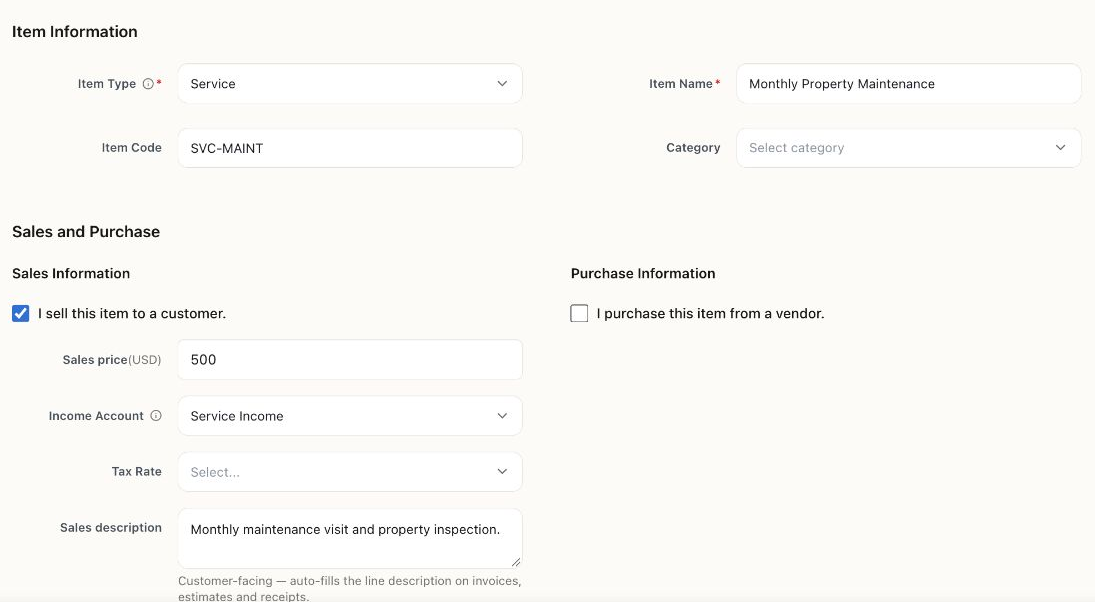
This service was saved in the Demo company and appears in Items as an active sales item. Saving an item creates a reusable record; it does not create an invoice or earn $500 of revenue.
Inventory information
Section titled “Inventory information”- Inventory Account: the asset account that holds the stock’s value.
- Opening quantity: units already on hand at your chosen starting date. Leave blank to start at zero.
- Opening unit cost: the cost of one unit, not the total stock value. If left blank, the form uses Cost Price.
- As of date: the date for the opening stock.
- Reorder point: the quantity at or below which the item is considered low stock.
- Reorder quantity: the suggested amount to reorder.
For example, 10 units at an opening unit cost of $8 represent $80 of stock. Do not enter $80 as the unit cost.
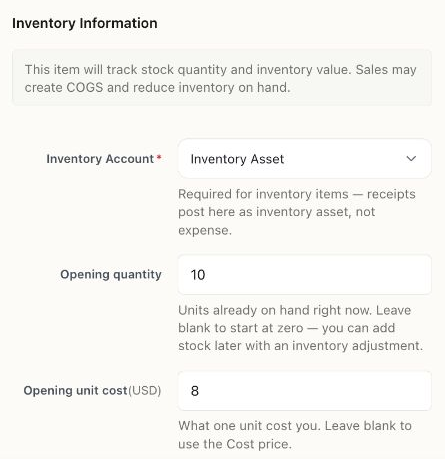
Filled example for an HVAC filter: 10 units × $8 per unit = $80 opening value. This form was not saved. Use your counted quantity, supported cost, and actual starting date.
Check before using the item
Section titled “Check before using the item”Confirm the type, sales and purchase settings, accounts, and prices. For inventory, compare the opening quantity and value with your source records. Do not record the same opening stock again through another purchase or adjustment.
Related: Prepare your opening balances and create an invoice.
Related walkthrough
Section titled “Related walkthrough”Organize items with categories. If tracking stock by location, review warehouse activation before enabling it.
For a catalog migration, use import items and opening stock. Review inventory costing and cost scope before entering opening inventory.